
Tips & Tricks
How to Customize Promzio Prompts to Get 10x Better AI Results
Learn how to customize Promzio prompts with real tips & tricks our team personally uses to get stunning AI images every single time. 2000+ word guide.
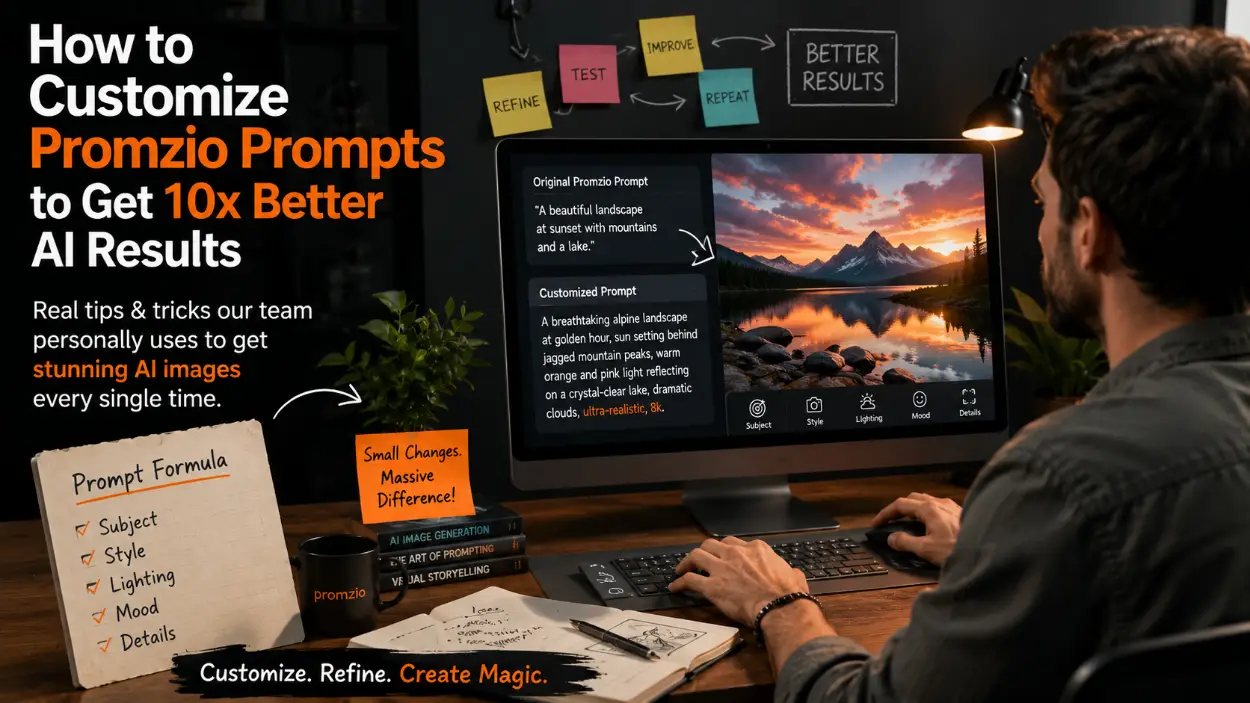
Why Customizing Your Prompt Matters More Than You Think
If you've ever copied a prompt from Promzio and pasted it into your AI tool — only to get a result that looked "almost right" but not exactly what you had in your head — you're not alone.
Our team goes through this all the time. We build, test, and refine prompts daily. And what we've learned over hundreds of iterations is this: a great prompt from Promzio is a starting point, not an endpoint. The real magic happens when you know how to customize it for your exact vision.
In this guide, I'm sharing the exact tips and tricks our team personally uses — the ones we've tested ourselves — to take a good Promzio prompt and turn it into something that consistently delivers breathtaking AI results.
Here's the truth that most people miss: AI image tools don't read your mind. They read your words. Every single word in a prompt carries weight — the subject, the lighting style, the camera angle, the color grade, the mood — all of it influences the final output.
When you copy a prompt from Promzio — say, something like our Meadow Slumber: Golden Hour Serenity in a Wildflower Field prompt — it was written and optimized for one specific scenario: a handsome young Indian man asleep in a wildflower meadow at golden hour, in Makoto Shinkai's cinematic anime style.
But what if you want a young woman instead? Or a European forest setting instead of an open meadow? Or a slightly different lighting mood?
That's where customization comes in. And once you know the five key zones of a prompt that you can safely tweak, getting 10x better results becomes almost automatic.
The 5 Key Zones of a Promzio Prompt You Can Customize
Every detailed prompt on Promzio is built around five layers. Understanding these layers is the first step to mastering customization.
Zone 1 — The Subject
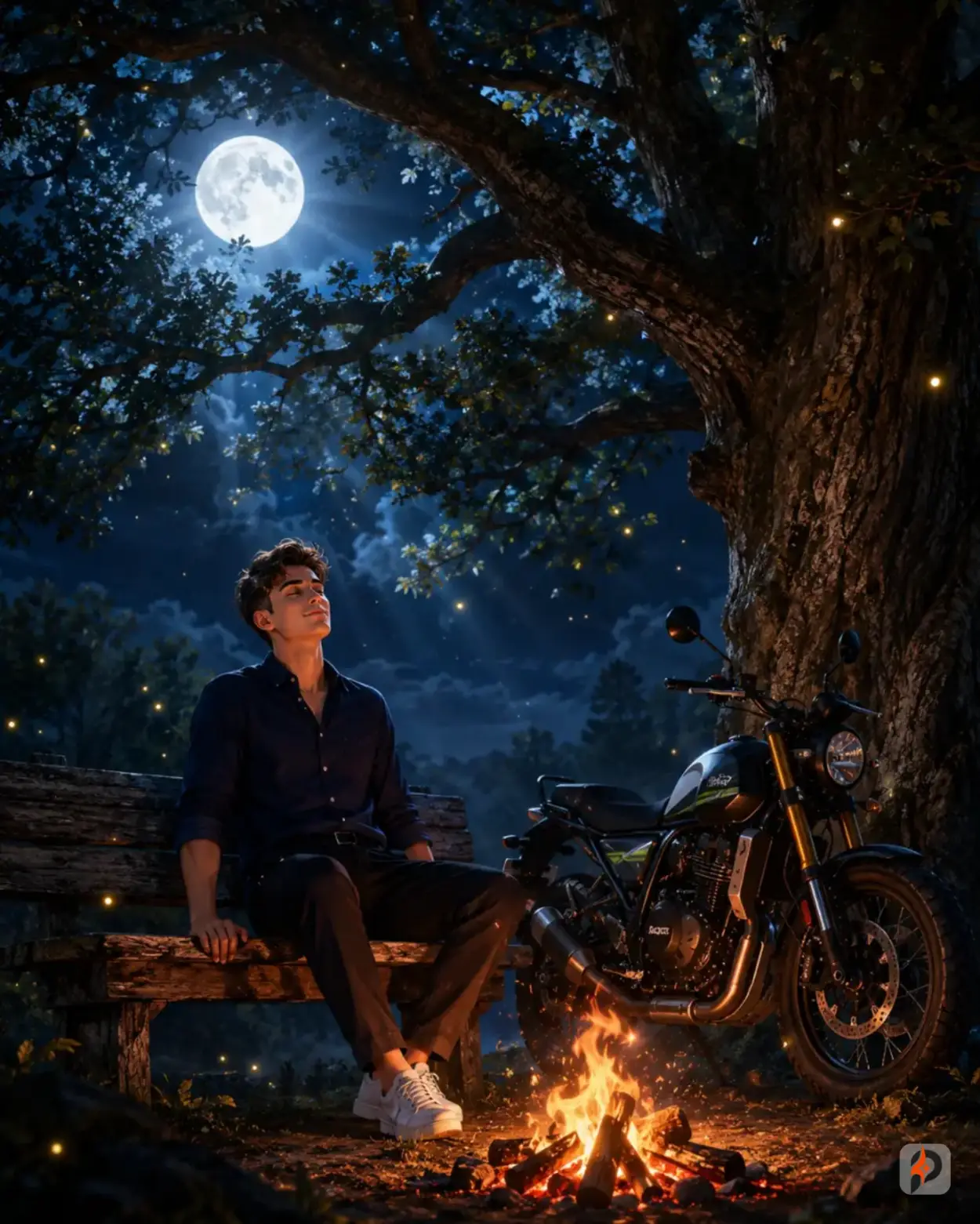
What it is: The person, object, or main focus of the image.
In our Moonlit Solitude prompt, the subject is described as: "a young, exceptionally handsome man sits alone on a modest weathered wooden bench."
How to customize it: Change the gender, age, ethnicity, clothing, or pose. If the original prompt says "young Indian man" and you want a young Japanese woman in traditional dress, simply replace that section. The rest of the prompt — lighting, atmosphere, background, rendering style — stays intact and still does its job perfectly.
Real example from our team: We once changed "handsome young Indian man" to "graceful elderly woman with silver hair" in the Moonlit Solitude prompt. Everything else stayed the same. The result? An absolutely stunning, emotionally resonant portrait of an older woman beneath the moonlit oak. The AI handled the mood shift beautifully because the lighting and atmosphere instructions were strong enough to carry it.
Zone 2 — The Setting & Background
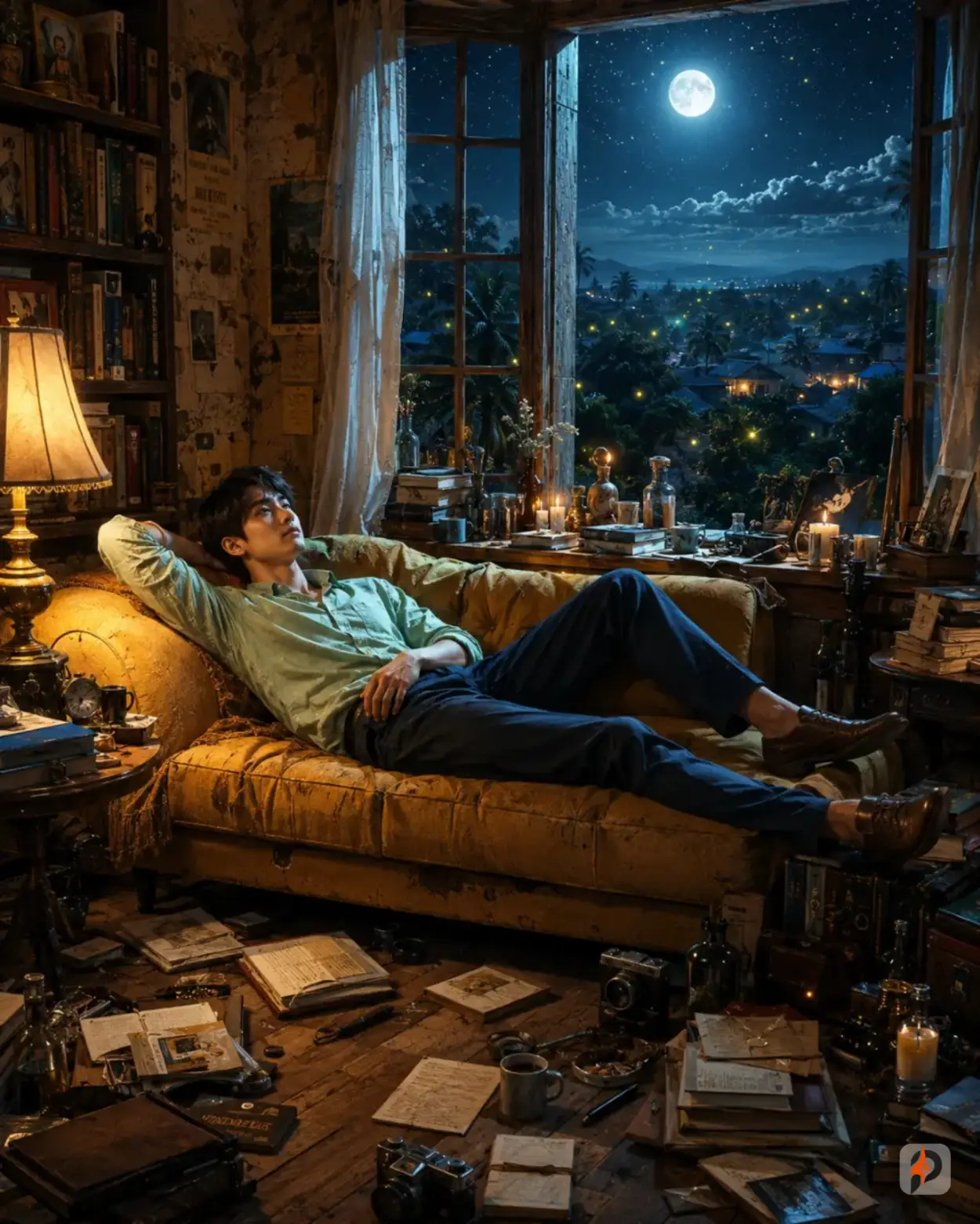
What it is: Where the scene takes place — the environment, time of day, weather, or location.
Look at our Writer's Sanctuary: Nocturnal Solitude in a Cluttered Apartment prompt. The setting is deeply described: "a worn mustard-yellow vintage mid-century sofa inside a cozy yet beautifully cluttered apartment at night."
How to customize it: Swap the interior apartment with an outdoor garden, a minimalist modern studio, or a traditional Indian home. Change "at night" to "at dawn" or "during a thunderstorm." These setting swaps are some of the easiest and most impactful changes you can make.
Real tip from us: Always replace the entire setting description together, not just single words. If you change "apartment at night" to "beach at sunset," you also need to update the window view, the lamp reference, and the moonlight. Replacing isolated words without updating the full context often creates contradictions the AI gets confused by.
Zone 3 — The Lighting
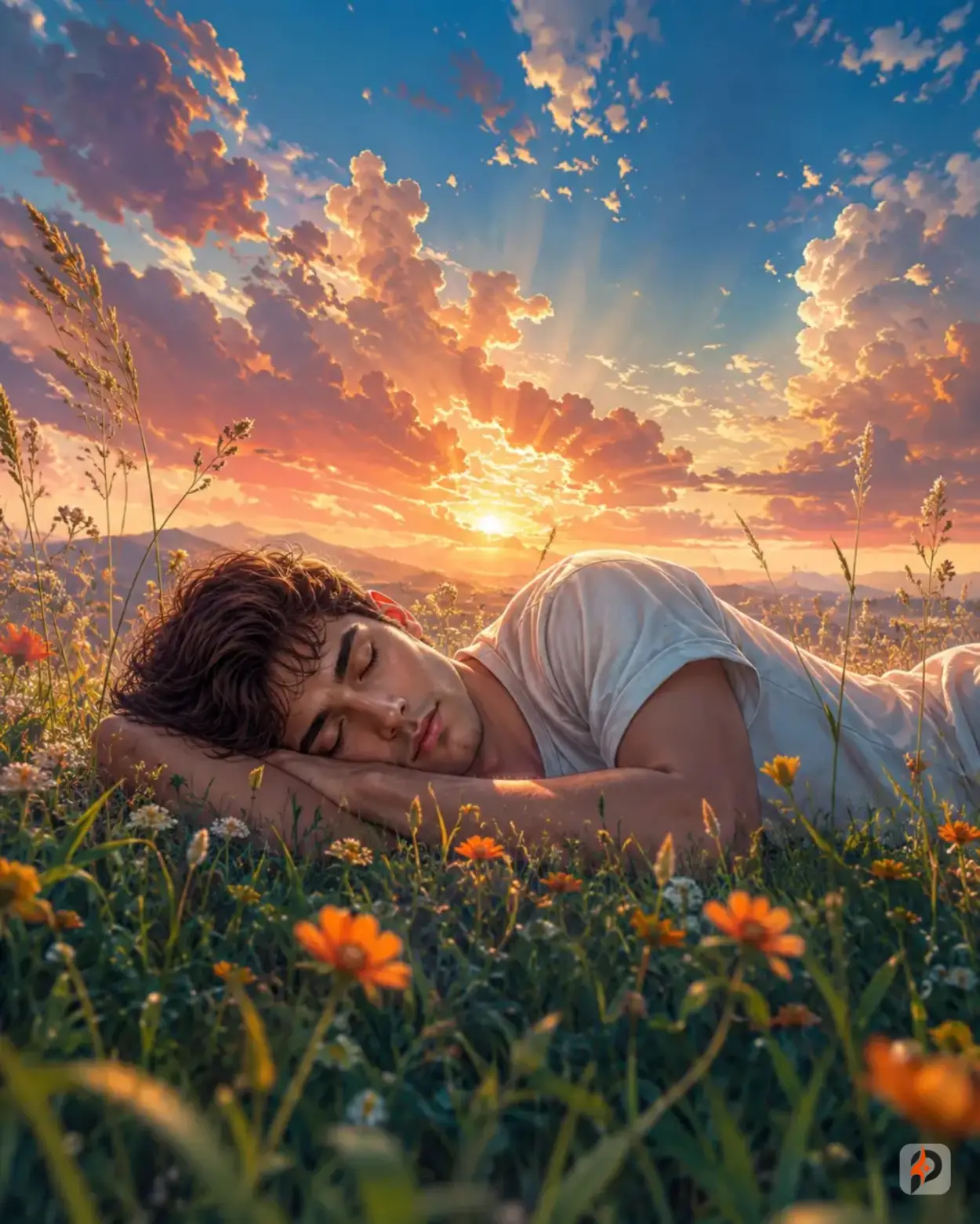
What it is: How the scene is illuminated — the type, direction, color, and quality of light.
Lighting is the single most powerful element in any AI image prompt. It determines whether an image looks cinematic or flat, warm or cold, dramatic or gentle.
In our Meadow Slumber prompt, the lighting is: "cinematic golden-hour backlighting with warm amber sunlight streaming from behind the clouds."
How to customize lighting:
Original Lighting | Customized To | What Changes |
|---|---|---|
Golden hour backlighting | Overcast diffused light | Moody, flat, melancholic feel |
Warm amber firelight | Cool blue moonlight | Mysterious, nocturnal atmosphere |
Soft morning window light | Dramatic chiaroscuro | Painterly, gallery quality |
Volumetric god rays | Neon cyberpunk glow | Futuristic, edgy energy |
You can completely transform the emotional tone of any Promzio prompt just by swapping the lighting description. Our team does this constantly when adapting a single base prompt for multiple different campaigns.
Zone 4 — The Art Style & Rendering Quality
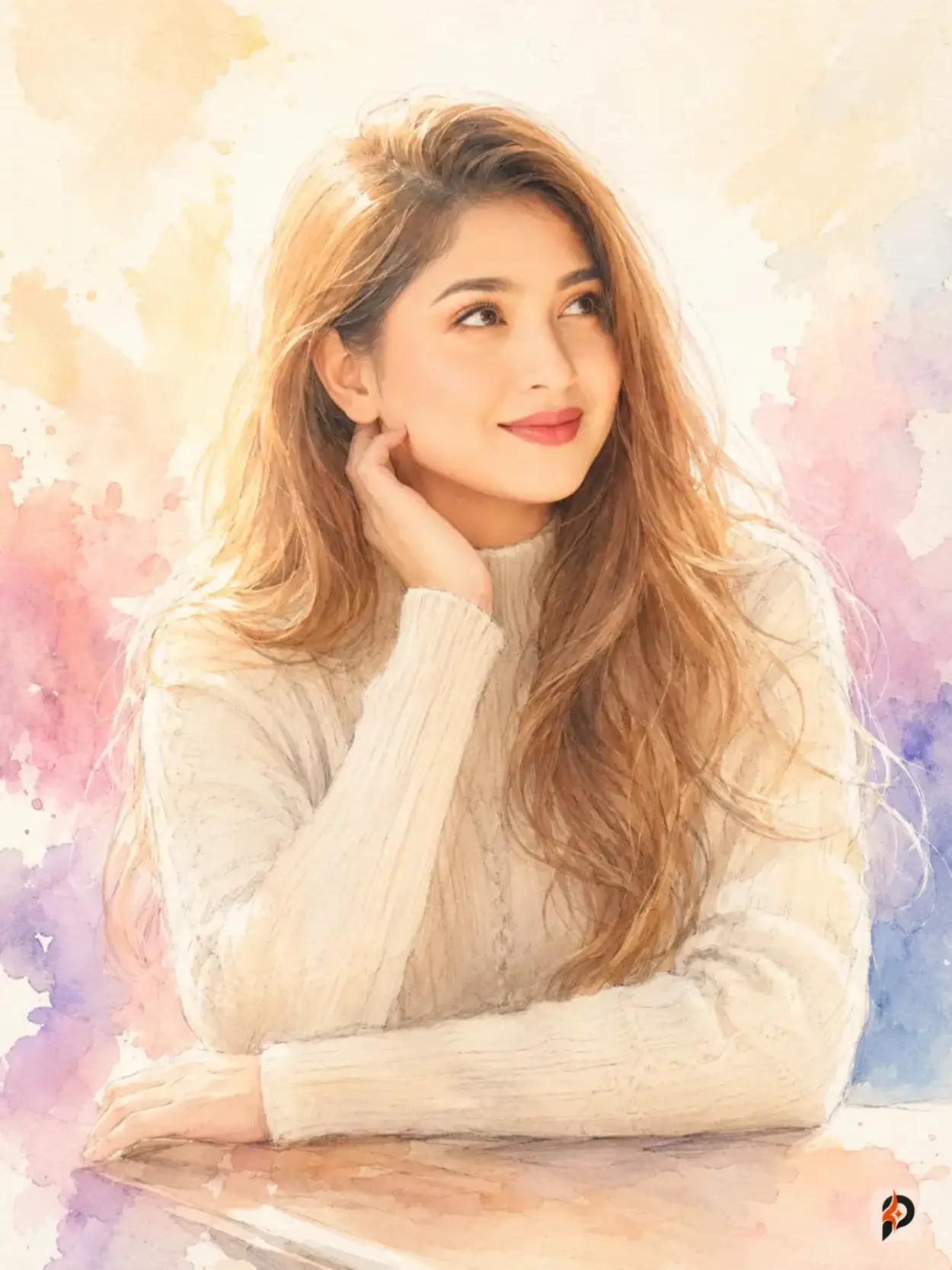
What it is: The visual aesthetic — anime, realistic, painterly, watercolor, etc. — plus the technical quality keywords.
Promzio prompts often specify styles like "Makoto Shinkai-inspired anime realism" or "Studio Ghibli interiors" or "fine-art oil painting." These style anchors are critical — they tell the AI which visual vocabulary to draw from.
How to customize the style:
Want photorealism? Replace "anime realism" with "ultra-photorealistic DSLR photograph, Canon EOS R5, natural skin texture, documentary style."
Want watercolor softness? Look at our Ethereal Watercolor Portrait — that entire style block can be copy-pasted into other portrait prompts.
Want fine-art museum quality? Look at our Fine-Art Fusion Portrait — the impasto, palette-knife, and chiaroscuro lighting instructions here are modular and work with any portrait subject.
Want nostalgic vintage? Add: "35mm film grain, Kodak Portra 400, light leaks, vintage color grading, slightly faded highlights."
Important: Always keep the quality tail-end of the prompt — terms like "8K resolution, hyper-detailed, masterpiece, publication-ready, HDR" — even when you change the style. These technical keywords are what push the AI to render at maximum quality.
Zone 5 — The Emotional Atmosphere & Mood
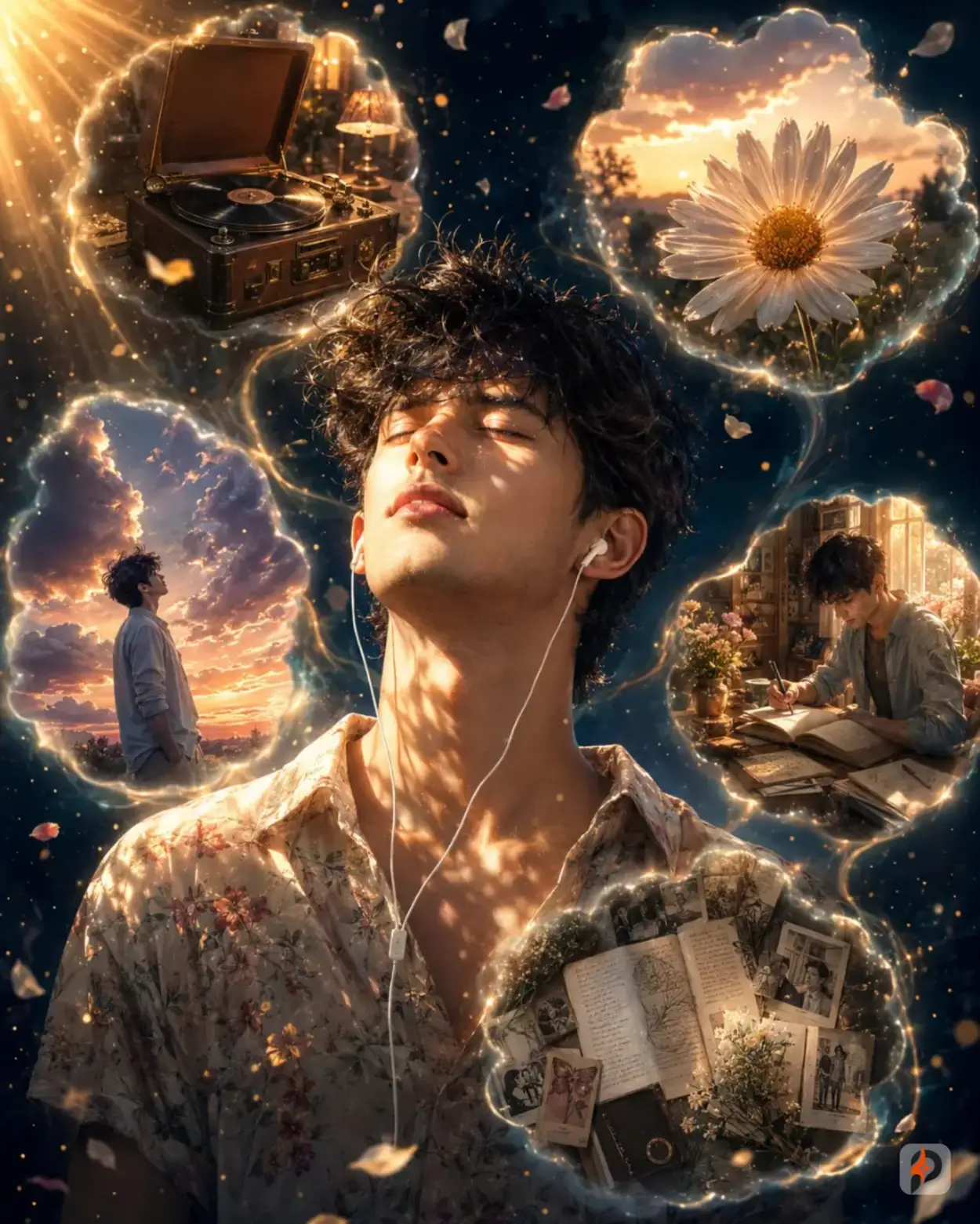
What it is: The feeling or emotional tone the image should convey.
This is the part most people forget entirely — and it's where the difference between a technically correct image and a genuinely moving one lives.
Look at how our Memories in Melody prompt describes mood: "The emotional atmosphere is profoundly poetic, contemplative, surreal, and emotionally immersive, symbolizing nostalgia, imagination, creativity, solitude, emotional resilience, self-discovery, and inner healing through music."
How to customize the mood: Write a single sentence describing the emotion you want the viewer to feel. Be specific. "Melancholic but hopeful" is better than "sad." "Quiet pride of a first-generation student" is better than "happy." The AI genuinely responds to emotional language — our team has tested this extensively, and the difference in output quality when a clear mood is specified is consistently noticeable.
Tip 6: Use Promzio's AI Prompt Builder First
Before you customize anything manually, try the AI Prompt Builder on the Promzio homepage. It's the fastest way to generate a base prompt from scratch using pre-tested options our team has curated.
Here's the workflow our team follows:
Go to promzio.com and scroll to the "Build Your Perfect AI Prompt" section.
Select your filters — style, mood, subject type, lighting.
Describe your idea in your own words in the text box (any language works).
Click "Enhance with AI" — this transforms your rough idea into a polished, ready-to-use prompt.
Copy the result and paste it into your AI tool.
The builder handles the technical structure for you. Once you have that base, you can fine-tune the five zones above to make it exactly yours.
Tip 7: The "Copy + Layer" Method — Our Team's Secret Workflow
This is the single most effective method our team uses when we need a very specific result.
Step 1: Browse Promzio's prompt library and find a prompt that matches your mood and setting — even if the subject isn't exactly right.
Step 2: Copy that prompt.
Step 3: Open a new note. Paste it. Now surgically replace only the subject description with your own. Keep everything else exactly as written.
Step 4: Go back to Promzio and find a second prompt that has the subject description you want — right person, right clothing, right expression.
Step 5: Extract just that subject paragraph and paste it into your working prompt, replacing the original one.
You've now combined the best environmental description from one masterpiece with the best character description from another. This is "prompt layering" — and it's how our most detailed prompts get built.
Try it with: Moonlit Solitude for the environment + Fine-Art Fusion Portrait for the subject rendering style.
Tip 8: Use Tags to Find Related Prompts Fast
Every prompt on Promzio has tags. These aren't decorative — they're functional. When you click a tag, you immediately see every prompt in our library that shares that aesthetic.
If you loved the lighting in the Meadow Slumber prompt, click the GoldenHourSunset tag and see every other prompt we've built with that same lighting treatment.
Looking for all cinematic anime prompts? Click MakotoShinkaiStyle.
Want museum-quality fine art? Click MuseumQualityArt.
This tag-based browsing is one of the fastest ways to build a mental library of which prompt structures work well for which results.
Tip 9: The Specificity Ladder — Make Every Detail Count
Generic prompts produce generic results. Our team learned this early: the more specific your language, the more precise your output.
Specificity Ladder examples:
"a man sitting" → "a young man sitting on a weathered wooden bench, one arm resting casually on the armrest, head tilted slightly upward"
"good lighting" → "warm amber firelight from the left, cool blue moonlight from the upper right, creating dual-tone cinematic illumination"
"beautiful background" → "a dense midnight-blue forest dissolving into atmospheric haze, with fireflies drifting through the air like floating lanterns"
"high quality" → "8K ultra-high resolution, HDR, ray-traced global illumination, masterpiece-quality digital painting, publication-ready"
"anime style" → "Makoto Shinkai-inspired anime realism, painterly brushwork, expressive facial rendering, cinematic depth of field"
You can apply this ladder to any Promzio prompt. Take any vague section and expand it with real, sensory, technical detail. When our team does this on a base Promzio prompt, the result quality typically improves by a full category.
Tip 10: Never Remove the Quality Keywords at the End
This is the most common mistake we see. People take a Promzio prompt, cut it down to a shorter version "to save space" — and remove the technical quality tail in the process.
Those last lines — the ones that say things like "8K ultra-high resolution, hyper-detailed, masterpiece, HDR, publication-ready, Unreal Engine 5 visual fidelity, award-winning concept art quality" — are not decoration. They are instructions to the AI about the rendering ceiling it should reach for.
Remove them, and the AI will produce a perfectly acceptable image — but not a breathtaking one. Keep them. Always.
Tip 11: Browse by Category for Focused Inspiration
Promzio organizes its entire library into categories. Visit Promzio's categories page to jump straight into the type of prompt you need.
Each category is curated for different use cases and AI tools, so the prompts inside are already optimized for that context. When you find a category that matches your project, the customization work becomes much lighter because you're starting from a better fit.
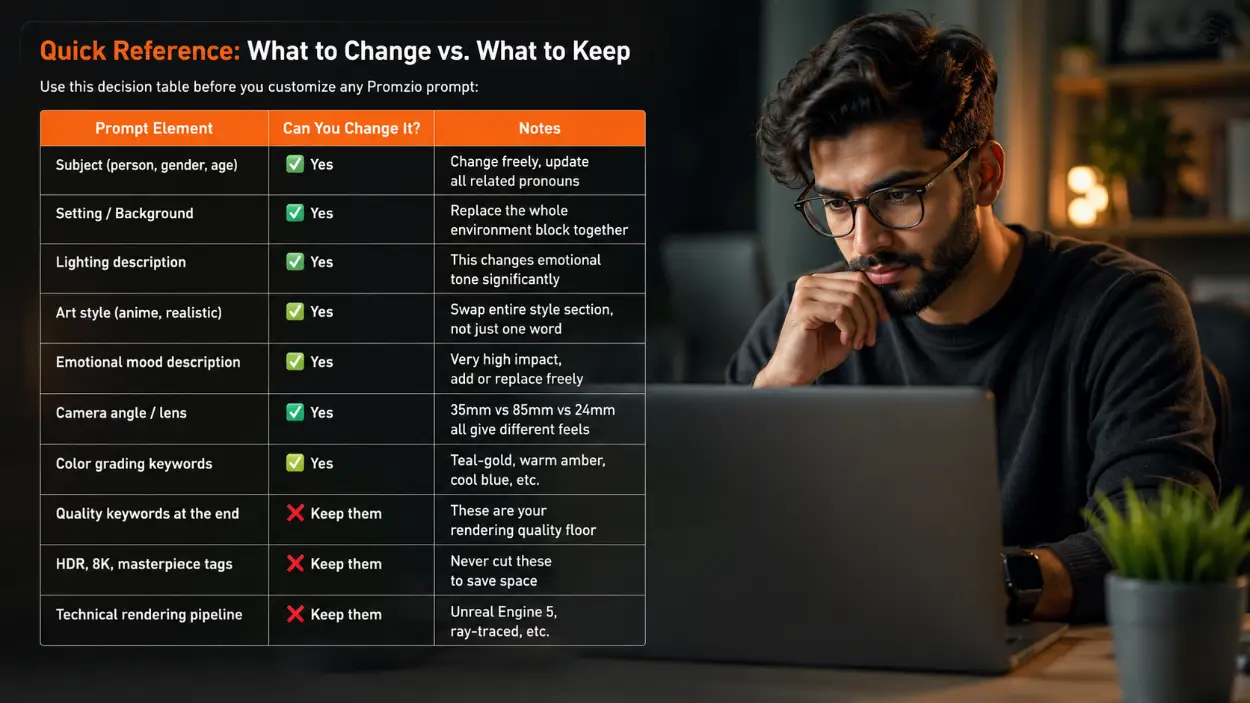
Quick Reference: What to Change vs. What to Keep
Use this decision table before you customize any Promzio prompt:
Prompt Element | Can You Change It? | Notes |
|---|---|---|
Subject (person, gender, age) | ✅ Yes | Change freely, update all related pronouns |
Setting / Background | ✅ Yes | Replace the whole environment block together |
Lighting description | ✅ Yes | This changes emotional tone significantly |
Art style (anime, realistic) | ✅ Yes | Swap entire style section, not just one word |
Emotional mood description | ✅ Yes | Very high impact, add or replace freely |
Camera angle / lens | ✅ Yes | 35mm vs 85mm vs 24mm all give different feels |
Color grading keywords | ✅ Yes | Teal-gold, warm amber, cool blue, etc. |
Quality keywords at the end | ❌ Keep them | These are your rendering quality floor |
HDR, 8K, masterpiece tags | ❌ Keep them | Never cut these to save space |
Technical rendering pipeline | ❌ Keep them | Unreal Engine 5, ray-traced, etc. |
A Real Example: Putting It All Together
Let's say you find Meadow Slumber on Promzio and you want to adapt it to show a young woman of European descent in a snowy alpine meadow at blue hour instead of a golden hour sunset.
Here's your five-step customization checklist:
Subject change: Replace "handsome young Indian man" → "graceful young European woman with light skin and auburn hair" — update pronouns throughout.
Setting change: Replace "flourishing wildflower meadow during golden hour" → "frost-covered alpine meadow at blue hour, just after sunset"
Lighting change: Replace "cinematic golden-hour backlighting with warm amber sunlight" → "cool twilight blue-hour lighting, soft silver ambient light from the open sky, gentle cold rim light outlining the figure"
Color grading change: Replace "premium teal-and-gold cinematic color grading" → "cool sapphire, silver-blue, and pale lavender cinematic color grading"
Keep everything else — the camera setup, depth of field, quality keywords, rendering pipeline, the detailed grass and foreground description.
This five-step process takes under three minutes. And the result? A completely original image that shares the same cinematic depth and technical quality as the original — just transformed to your vision.
Frequently Asked Questions
Can I use Promzio prompts with any AI tool?
How much of the original Promzio prompt should I keep when customizing?
What if my customized prompt gives results that look wrong or "broken"?
Is it okay to shorten a long Promzio prompt?
Where can I find prompts organized by style or mood on Promzio?
Can I combine two different Promzio prompts?
How do I get consistent results across multiple images using Promzio prompts?

Promzio Team
AI Prompt Specialists & Curators
Promzio is built and maintained by Jay, a web developer (BCS, MCA) with hands-on experience using AI tools in real projects and workflows. After spending countless hours searching for reliable, ready-to-use AI prompts and facing the same struggles many creators do, Jay set out to build a solution — alongside a dedicated team of 4 — to make that process easier for everyone.
Promzio was created to solve a problem we personally faced: wasting time searching for good prompts instead of creating. Every prompt on this site is tested, organized, and shared with the goal of helping creators, marketers, and AI enthusiasts save time and create better content, faster.