
Tips & Tricks
15 Tips & Tricks to Master Promzio's AI Prompt Builder
Most people click two filters, copy the output, and wonder why their AI images look average. These 15 tips — built from real usage of Promzio's Prompt Builder — show you exactly what separates a mediocre result from a strong one, including when to use "Enhance with AI" and when the base prompt is already the right answer.
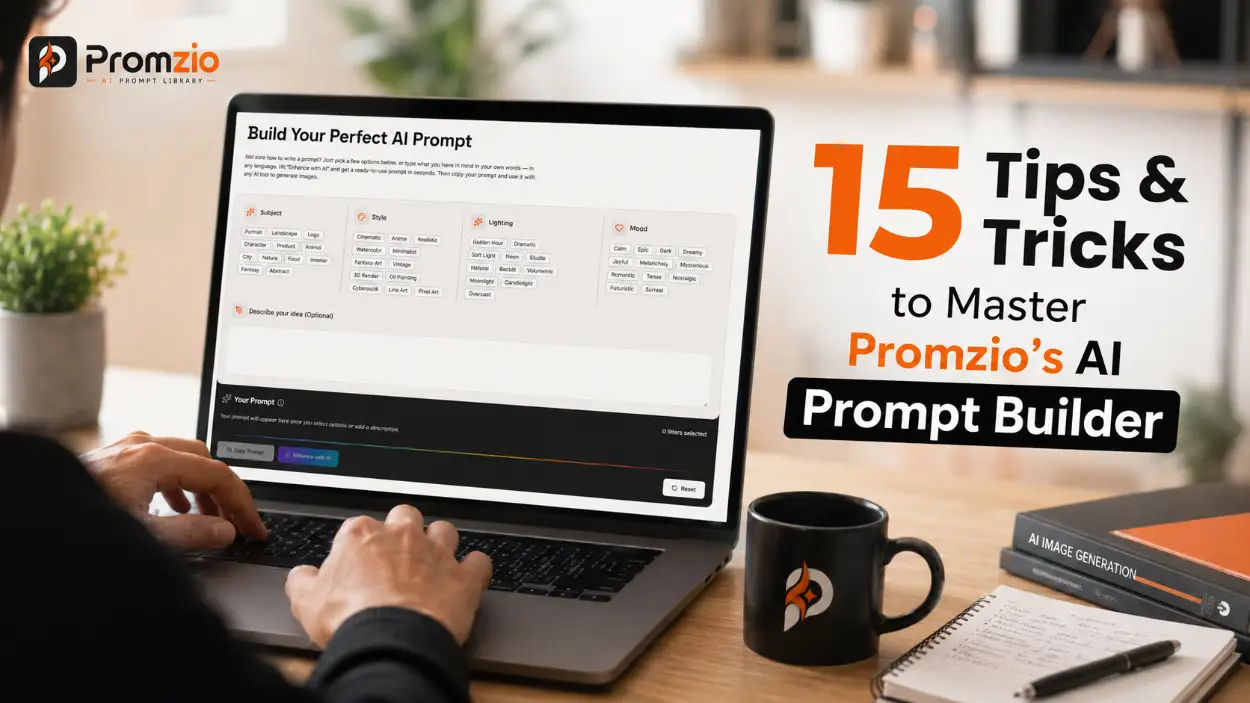
Most people who use Promzio's AI Prompt Builder treat it like a search engine — click a few filters, copy whatever appears, and hope for the best. Sometimes it works. Often, it doesn't produce what they actually had in mind. The frustrating part is they're not sure what to change.
The tool isn't the problem. The approach is.
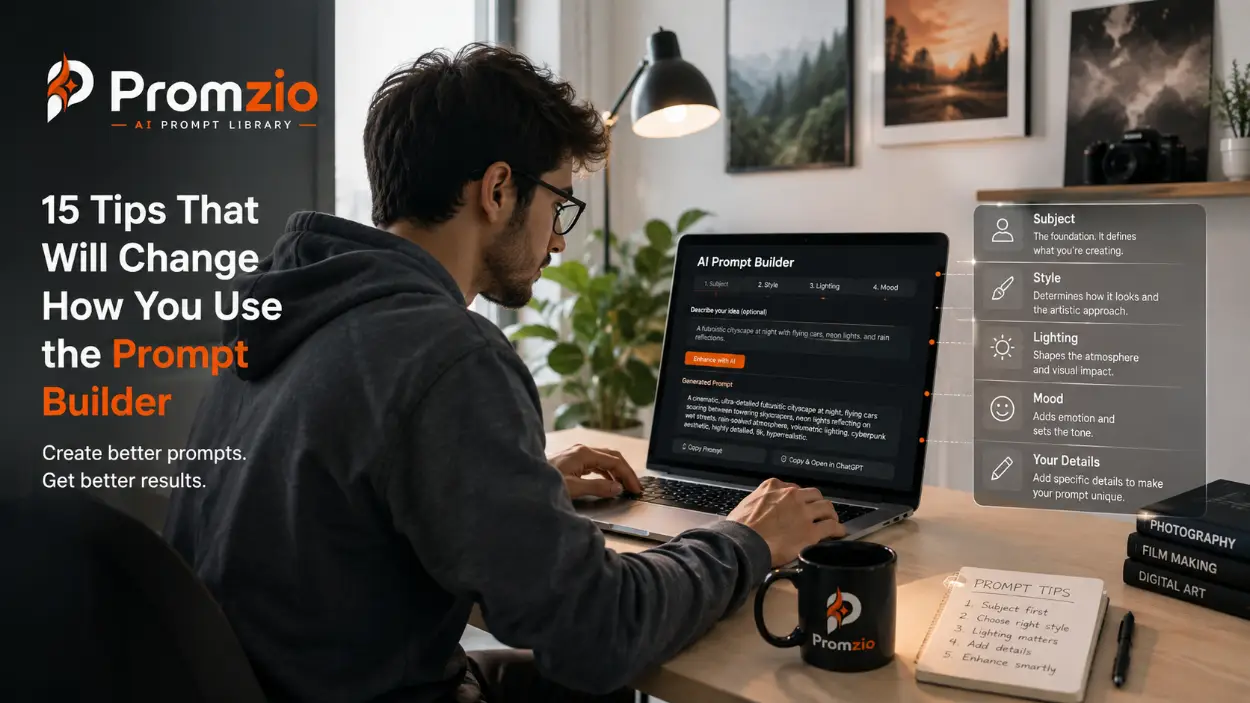
The Prompt Builder has four filter categories — Subject, Style, Lighting, and Mood — plus a free-text description box, a Copy Prompt button, an Enhance with AI button, and a Reset button. Each one of those elements has a specific role. Knowing how to use them deliberately, together, is what separates a generic output from exactly what you were picturing.
These 15 tips are built from real usage. Not theory — actual prompts, actual combinations, actual decisions about when to hit Enhance and when to skip it. If you want a full walkthrough of how the builder works mechanically before diving in, the complete beginner's guide covers every section from start to finish. Otherwise, let's get into the tips.
15 Tips That Will Change How You Use the Prompt Builder
Tip 1: Start With Subject Every Single Time
Subject is the foundation of the entire prompt. Style defines how it looks. Lighting defines how it's lit. Mood defines the emotional tone. But none of those mean anything until the builder knows what you're creating.
Here's the part most people don't realize: each Subject option is already mapped to a set of professional descriptors behind the scenes. When you select "Food," the builder automatically includes language like overhead or 45-degree angle, styled plating, soft natural light — terms that food photographers use professionally. When you select "Animal," it pulls in wildlife photography style, ultra detailed fur/feathers, natural habitat. You don't write any of that. It's already there, waiting to be activated by your Subject choice.
Pick Subject first. Everything else builds on top of it.
Tip 2: Choose Style Based on What the Subject Needs, Not What Sounds Interesting
This is where most combinations go wrong. Style and Subject need to make sense together. A "Logo" subject almost never benefits from "Oil Painting" or "Anime." A "Fantasy" subject rarely needs "Minimalist." The mismatch doesn't produce creative results — it produces confused prompts.
Ask yourself: what does this subject look like in this style? A Portrait in Realistic gives you a hyperrealistic photograph. The same Portrait in Watercolor gives you a painted illustration. The same Portrait in Cinematic gives you a film still. All three are valid — but only one matches what you actually want. Make the choice deliberately, not by instinct alone.
Tip 3: Use Lighting to Shape the Entire Mood of the Image
Lighting is the most underused filter in the builder. It is also the one with the highest visual impact. Change only the Lighting on an otherwise identical prompt, and the output looks like a completely different image.
Here is what each Lighting option actually does to an image in practice:
Golden Hour — warm amber, long soft shadows, nostalgic atmosphere. Use it for outdoor portraits, travel scenes, anything that needs warmth and time-of-day feeling
Dramatic — Rembrandt chiaroscuro, sharp light-to-shadow contrast. Use it when the image needs visual weight and intensity
Volumetric — god rays, light beams through fog. Use it for fantasy environments and cinematic wide shots that need depth
Studio — clean three-point professional lighting, neutral background. Use it for product shots, character design, and anything commercial
Backlit — rim lighting, silhouette with glowing edges. Use it for hero reveals, dramatic action moments, subjects standing against a bright source
Neon — colored LED glow, wet surface reflections. Use it for cyberpunk, urban night scenes, futuristic environments
Moonlight — cool silver illumination, quiet night atmosphere. Use it for mysterious, dark, or romantic exterior scenes
Candlelight — warm flicker, intimate low-key light. Use it for historical settings, cozy interiors, quiet emotional portraits
Soft Light — diffused overcast light, no harsh shadows. Use it for flattering portraits and soft, gentle compositions
Natural — ambient daylight, no artificial sources. Use it for realistic outdoor scenes that need clean, unmanipulated light
Overcast — flat even light, muted tones. Use it when you want a subdued, cinematic, or melancholic atmosphere
When a result feels flat or generic, Lighting is the first thing to change before anything else.
Tip 4: The Description Box Is Not Optional — It's Where the Prompt Gets Personal
The builder labels it "Optional." Technically accurate. Practically, leaving it blank when you have a specific vision in mind is the single biggest reason prompts produce generic results.
The filters give you structure. The description box gives the prompt its specific identity. The difference between "a person standing in a field" and "a young woman in her mid-twenties with curly auburn hair, wearing a worn leather jacket, standing at the edge of a sunflower field during late afternoon" is not about word count — it's about specificity. The more precise your description, the more targeted and useful the output.
You don't need to write a paragraph. Two or three sentences with concrete visual details — physical description, clothing, setting, time of day, specific objects — is enough to completely transform what comes out the other side.
Tip 5: Add Filters One at a Time, Not All at Once
The most common beginner mistake: select all four categories, click Enhance, get a result that doesn't match expectations, and have no idea which part to change because everything was added at the same time.
Add filters in layers. Start with Subject and Style. Read the prompt preview. Notice what's already there. Add Lighting. Notice what changed. Add Mood. Notice again. This way, you know exactly what each layer contributes — and you know exactly what to remove or swap when something isn't working. The builder is fast enough that this takes less than a minute per iteration.
Tip 6: Always Copy the Base Prompt Before You Click Enhance
The Enhance with AI button rewrites your entire prompt from scratch. If you don't save the base version first, it's gone the moment you click it. Sometimes the enhanced output is exactly what you needed. Sometimes it moves the prompt in a direction you didn't intend — and you'll want the base version to fall back on.
One click on "Copy Prompt" before hitting Enhance takes two seconds. Keep it in a notes document while you work. This small habit saves rebuilding time repeatedly.
Tip 7: Know Exactly When to Use Enhance — and When to Skip It
The Enhance with AI button runs your current prompt through a Gemini AI engine that adds technical art and photography vocabulary — lens types, render engines, texture and material details, color palette breakdowns, quality boosters like 8K, ultra-detailed, and award-winning composition. For complex, layered, highly visual scenes, this is genuinely valuable. For clean, specific, commercially-oriented prompts, it can make the output longer without making it better.
Use Enhance when: your idea is complex, visual, or layered — fantasy scenes, character design, environmental concept art, anything where you need professional technical vocabulary that you wouldn't normally include
Skip Enhance when: your description is already precise and your filters are a strong match — particularly for product photography, clean portrait shots, and minimal compositions where more words work against the clarity you need
The three real examples below show exactly where this decision matters.
Three Real Examples From the Promzio Prompt Builder
Each example below was built directly inside the Prompt Builder on Promzio. Each one demonstrates a specific tip in a way that's clearer to see in practice than to explain in theory.
Example 1 — When Enhance Does Exactly What You Need It to Do

Filters selected: Subject: Character | Style: 3D Render | Lighting: Studio | Mood: Joyful
Description: A charismatic young man with tousled brown hair and friendly hazel eyes, wearing an olive green hoodie and white sneakers.
Enhance with AI: Used
The enhanced prompt that came out:
A charismatic young man, early 20s, with slightly tousled brown hair and expressive, friendly hazel eyes, a genuine warm smile gracing his lips. He stands confidently in a full-body shot, hands casually tucked into the front pocket of a stylish, modern olive green hoodie, paired with pristine white sneakers and dark wash slim-fit jeans. His pose is relaxed yet engaging against a vibrant, softly gradient studio background, transitioning from sunny yellow to optimistic sky blue. This highly stylized Pixar-inspired 3D digital illustration, masterfully rendered as a premium character design, captures the soft, tactile texture of the hoodie's fleece and the clean surface of his sneakers. Soft, diffused three-point studio lighting with subtle rim lighting creates a cheerful atmosphere. Ray-traced global illumination enhances realistic subsurface skin scattering. Captured with a medium telephoto 85mm lens, showcasing a pleasing shallow depth of field with gentle background bokeh. The scene bursts with a vibrant, uplifting color palette of warm amber, golden tones, and cheerful blues, exuding an overwhelmingly positive and happy mood, ultra-detailed, 8K resolution, award-winning composition, hyper-sharp focus, professional color grading, masterpiece, rendered in Unreal Engine 5, octane render, trending on ArtStation.
What this example teaches about Tip 7:
The original description was two sentences. The enhanced prompt is a fully developed concept art brief. Look at what Enhance added that was never written anywhere: the 85mm telephoto lens, Unreal Engine 5 rendering, subsurface skin scattering, the exact gradient background from sunny yellow to optimistic sky blue, ray-traced global illumination. Every one of those details requires specific technical knowledge to write manually. The filters provided the creative direction — Character + 3D Render + Studio + Joyful — and the description gave the character a specific identity. Enhance added the professional technical layer that makes the difference between a rough prompt idea and a Pixar-quality character design brief. This is the right use case for the Enhance button.
Example 2 — When the Base Prompt Is the Right Answer
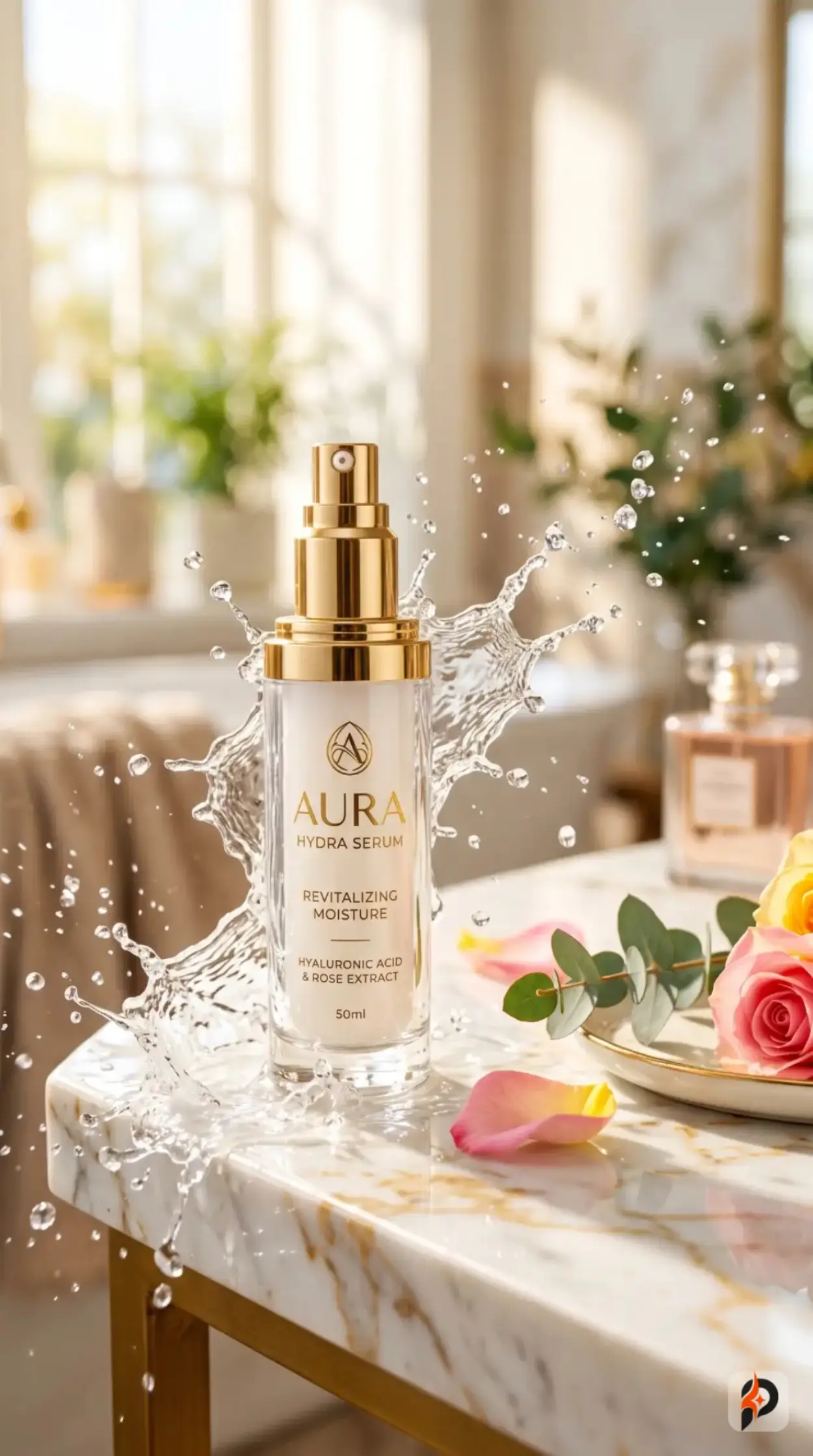
Filters selected: Subject: Product | Style: Cinematic | Lighting: Studio | Mood: Joyful
Description: A premium skincare bottle placed on a luxury marble table with floating water splashes, vibrant colors, clean composition, designed for Instagram advertisement.
Enhance with AI: Not used — base prompt copied directly
The base prompt that came out:
A premium skincare bottle placed on a luxury marble table with floating water splashes, vibrant colors, clean composition, designed for Instagram advertisement., a professional product photo on a clean surface, studio lighting, commercial photography style, cinematic film still, anamorphic lens, shallow depth of field, movie color grading, HBO quality, professional studio lighting, three-point lighting setup, clean white or black background, commercial photo, bright cheerful atmosphere, vibrant happy energy, warm colors, uplifting and positive mood
What this example teaches about Tip 7:
No Enhance was used — and that was the right call. Look at what the base prompt already contains without it: anamorphic lens, shallow depth of field, movie color grading, HBO quality, three-point lighting setup, commercial photography style. Every professional photography term a product shot needs is already there, contributed automatically by the Product + Cinematic + Studio + Joyful filter combination. The user's description provided the specific product details. The filters provided the commercial photography vocabulary. Together, they produced a clean, usable prompt in seconds — and adding Enhance would have expanded it with language suited for editorial or fantasy photography, which would have worked directly against the clean, commercial intent of the image.
Example 3 — How a Precise Description Does Most of the Work
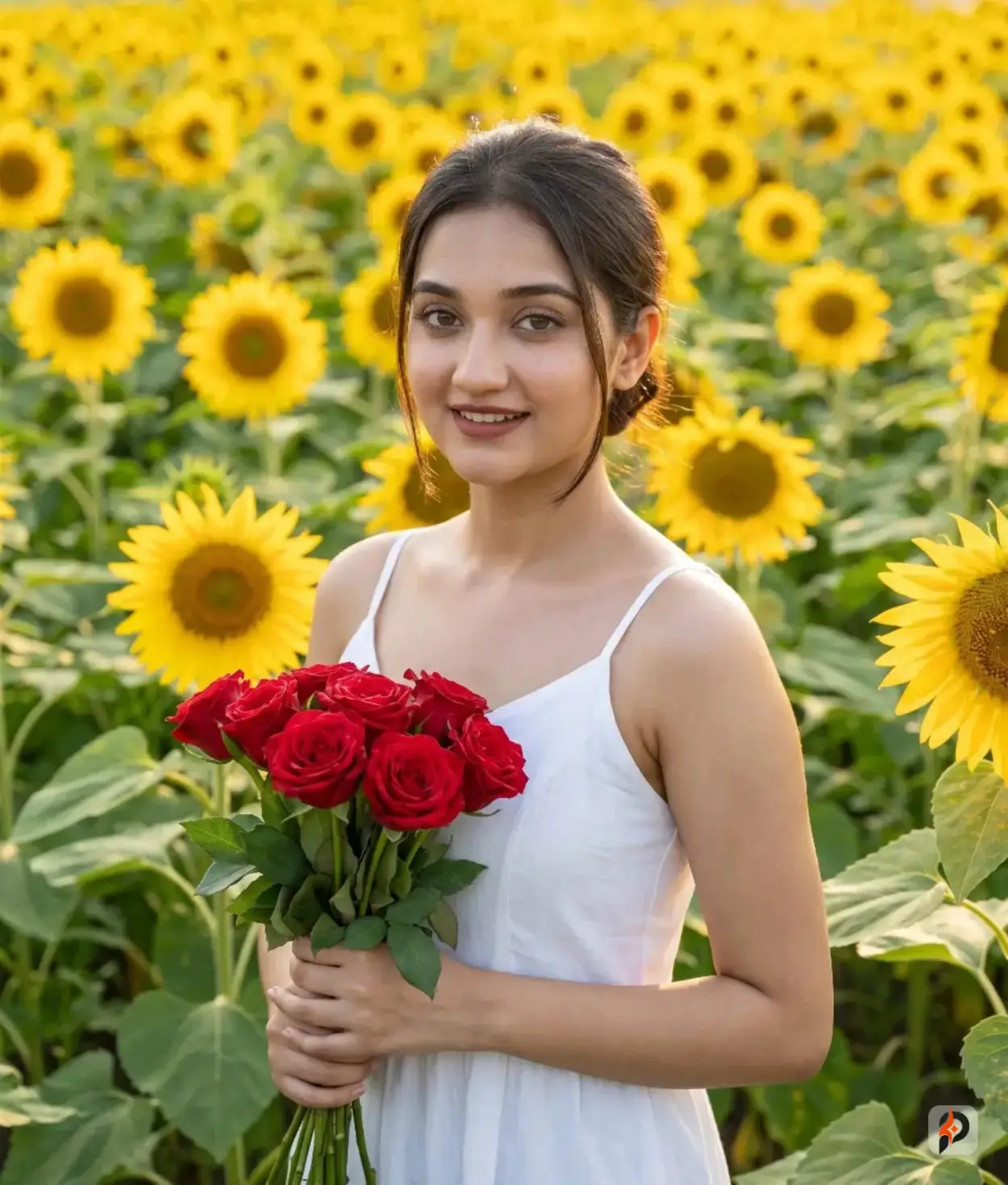
Filters selected: Subject: Portrait | Style: Realistic | Lighting: Natural | Mood: Calm
Description: A young woman standing in a sunflower field during summer, wearing a white dress, looking at the camera with a natural smile, shallow depth of field, highly detailed skin texture.
Enhance with AI: Not used — base prompt copied directly
The base prompt that came out:
A young woman standing in a sunflower field during summer, wearing a white dress, looking at the camera with a natural smile, shallow depth of field, highly detailed skin texture., a highly detailed portrait of a person, studio shot, sharp focus on face, hyperrealistic photograph, DSLR quality, photorealistic details, 8K resolution, sharp focus, natural ambient daylight, window light, no artificial sources, realistic outdoor illumination, serene and peaceful atmosphere, tranquil mood, soft colors, quiet contemplative feeling
What this example teaches about Tips 4 and 5:
This prompt demonstrates two things. First — specificity in the description box. The description included the dress color, the setting, the camera interaction (looking at the camera with a natural smile), depth of field, and skin texture. Every one of those details carried through into the final prompt and shaped the output. Second — four coherent filter choices, each one intentional. Portrait + Realistic + Natural + Calm is a combination where nothing conflicts. The lighting choice (Natural) matches the outdoor setting described. The mood (Calm) matches the serene, quiet atmosphere. The style (Realistic) matches the intent. When your filters and description are aligned this precisely, the base prompt is complete without any enhancement. Hyperrealistic, DSLR quality, 8K resolution, natural ambient daylight — all contributed automatically.
The Remaining Eight Tips
Tip 8: Use These Proven Filter Combinations as Your Starting Points
These combinations have been tested in the Promzio Prompt Builder and consistently produce strong results for specific creative goals. Start with one of these, add your description, then refine from there:
Character + 3D Render + Studio + Joyful — Pixar-style character design with bright, optimistic energy
Fantasy + Fantasy Art + Volumetric + Epic — Cinematic fantasy concept art with dramatic scale and atmosphere
Character + Anime + Dramatic + Epic — Intense anime character in a high-stakes, visually powerful scene
Portrait + Realistic + Natural + Calm — Clean, naturalistic portrait with DSLR-quality feel and no artificial drama
Product + Cinematic + Studio + Joyful — Commercial product photography with professional lighting and upbeat energy
Landscape + Watercolor + Golden Hour + Dreamy — Soft, painterly landscape for art prints and editorial illustration
City + Cyberpunk + Neon + Futuristic — Rain-soaked urban night scene with neon reflections and dystopian atmosphere
Animal + Cinematic + Backlit + Mysterious — Wildlife image with strong silhouette, cinematic drama, and hidden tension
These work because every filter in each combination serves the same intent. When all four filters point in the same direction, the prompt becomes coherent on its own — even before you add a description.
Tip 9: Treat the Reset Button as an Exploration Tool
Reset is not a sign that you failed. It is the fastest way to move forward. The Prompt Builder is free, requires no account, and imposes no limit on how many prompts you generate. Every time you reset, you are running another experiment — and the cost of that experiment is zero.
A useful working habit: generate a prompt, copy it, reset, try a completely different filter combination, copy that too, then compare both outputs side by side. The direction you didn't initially think of is often the one that produces a more interesting result.
Tip 10: Stop Ignoring the Abstract Subject
Portrait, Landscape, and Character get most of the attention because they're the most immediately recognizable. Abstract is treated as an afterthought — which is exactly why it's underused. It has some of the widest creative range of any Subject option in the builder.
Abstract + Surreal Mood produces impossible, dreamlike compositions suited for digital art, desktop wallpapers, and experimental visual projects. Abstract + Futuristic + Neon works well for tech-themed backgrounds, UI design inspiration, and motion graphics. Abstract + Minimalist + Calm produces clean, elegant, modern compositions with no visual noise. Try combining Abstract with Mood options you wouldn't expect — the results are consistently more surprising than the same experiment done with Character or Portrait.
Tip 11: Write Your Description in the Language You Think Clearly In
The description box accepts input in any language. This is not a limitation workaround — it is a genuine feature of the builder. If you describe a creative vision more precisely in Hindi, Gujarati, Spanish, French, Urdu, or any other language, write it in that language. When you click Enhance with AI, the engine reads your description regardless of language and generates a complete English prompt compatible with any AI image tool.
Non-English speakers often have very clear, detailed creative visions that they struggle to express accurately in English. The builder removes that friction entirely.
Tip 12: Run the Same Subject Through Multiple Styles Before Committing
When you're not certain which visual direction is right for a project, use the builder as a style exploration tool. Fix your Subject and your description. Then swap the Style filter — Realistic, Cinematic, Anime, 3D Render, Oil Painting, Watercolor — and generate a prompt for each one. Each variation gives you a concrete sense of what that subject looks like in that style before you generate a single image. It's a much faster way to make creative decisions than guessing and hoping.
Tip 13: Use the Promzio Prompt Library as Raw Material for the Builder
The Promzio Prompt Library contains thousands of real, tested prompts built by the Promzio team and organized by category, tool, and style. When you find a prompt that's close to your creative direction, copy it, paste it directly into the description box in the builder, then layer your own filters on top and click Enhance. You're starting from a strong, tested foundation and personalizing it — which is a much more efficient starting point than writing from scratch, particularly when you're working in an unfamiliar subject or style.
Tip 14: Copy the Prompt and Use It Directly — No Reformatting Required
Prompts generated by the Prompt Builder — both base and AI-enhanced — are structured to work directly with Midjourney, DALL-E 3, Stable Diffusion, Adobe Firefly, Leonardo AI, and Flux. You do not need to strip keywords, adjust formatting, or rewrite anything before pasting into your AI image tool. Copy it from the "Your Prompt" panel and paste it as-is. If you want to make adjustments after seeing the output, that is always your option — but the generated prompt is already built for immediate use across all of these platforms.
Tip 15: Read the Filter Counter Before You Hit Enhance or Copy
The "Your Prompt" preview panel shows a filter count — "2 filters selected" or "4 filters selected" — in the top right corner. This tells you exactly how much of the prompt is coming from filters versus how much is coming purely from your description text. If the counter reads "0 filters selected," the entire prompt is built from your description alone, with no filter vocabulary added.
Use this as a quick diagnostic. If a result feels generic or vague, look at the counter. If it's low and your description isn't detailed enough to compensate, that is the gap to fix — either by adding filters, adding specificity to the description, or both. It sounds like a minor thing, but it makes the difference between understanding why a result is the way it is versus guessing.
Quick Reference: Do This, Not That
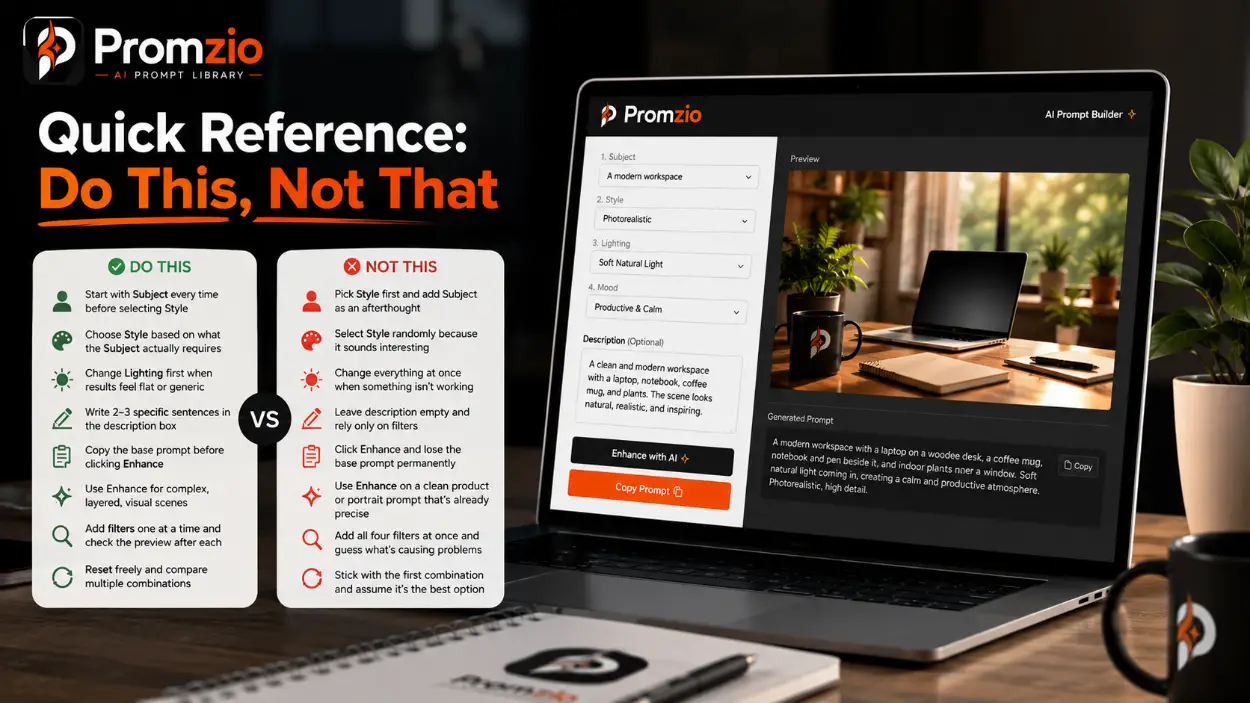
✅ Do This | ❌ Not This |
|---|---|
Start with Subject every time before selecting Style | Pick Style first and add Subject as an afterthought |
Choose Style based on what the Subject actually requires | Select Style randomly because it sounds interesting |
Change Lighting first when results feel flat or generic | Change everything at once when something isn't working |
Write 2–3 specific sentences in the description box | Leave description empty and rely only on filters |
Copy the base prompt before clicking Enhance | Click Enhance and lose the base prompt permanently |
Use Enhance for complex, layered, visual scenes | Use Enhance on a clean product or portrait prompt that's already precise |
Add filters one at a time and check the preview after each | Add all four filters at once and guess what's causing problems |
Reset freely and compare multiple combinations | Stick with the first combination and assume it's the best option |
The Difference Is Always in the Approach
Every tip in this post points to the same underlying truth: the Prompt Builder is already doing significant work before you click anything. The filter system is adding professional vocabulary you wouldn't normally think to write. The AI engine is adding technical precision that would take most people significant time to research and apply manually. The Promzio Prompt Library is offering thousands of tested examples to learn from.
Your job is to make deliberate choices — which Subject, which Style, which Lighting, which Mood — and to give the description box enough specificity that the prompt has a real identity instead of a generic one. That combination, applied intentionally, is what produces results that actually match what you were picturing.
Start applying these tips at promzio.com/#prompt-builder.
Frequently Asked Questions
Does the "Enhance with AI" button always improve the prompt?
Do I need all four filters selected to get a good result?
Can I write my description in Hindi, Gujarati, or any other non-English language?
Does the generated prompt work directly in Midjourney and DALL-E 3 without editing?
What does the "Enhance with AI" button actually do behind the scenes?
What happens when I click Reset?
Can I use a prompt from the Promzio Prompt Library as a starting point in the builder?

Promzio Team
AI Prompt Specialists & Curators
Promzio is built and maintained by Jay, a web developer (BCS, MCA) with hands-on experience using AI tools in real projects and workflows. After spending countless hours searching for reliable, ready-to-use AI prompts and facing the same struggles many creators do, Jay set out to build a solution — alongside a dedicated team of 4 — to make that process easier for everyone.
Promzio was created to solve a problem we personally faced: wasting time searching for good prompts instead of creating. Every prompt on this site is tested, organized, and shared with the goal of helping creators, marketers, and AI enthusiasts save time and create better content, faster.