Trending
How to Generate Clean Text, Logos & Typography in AI Images: The Modern Prompting Formula
If you've ever tried to generate text in AI images and ended up with garbled letters, spelling errors, or unreadable words — you're not alone. This guide breaks down the modern 5-part prompting formula to generate clean text, sharp logos, and readable typography across Midjourney, FLUX.1, DALL-E 3, and Ideogram.
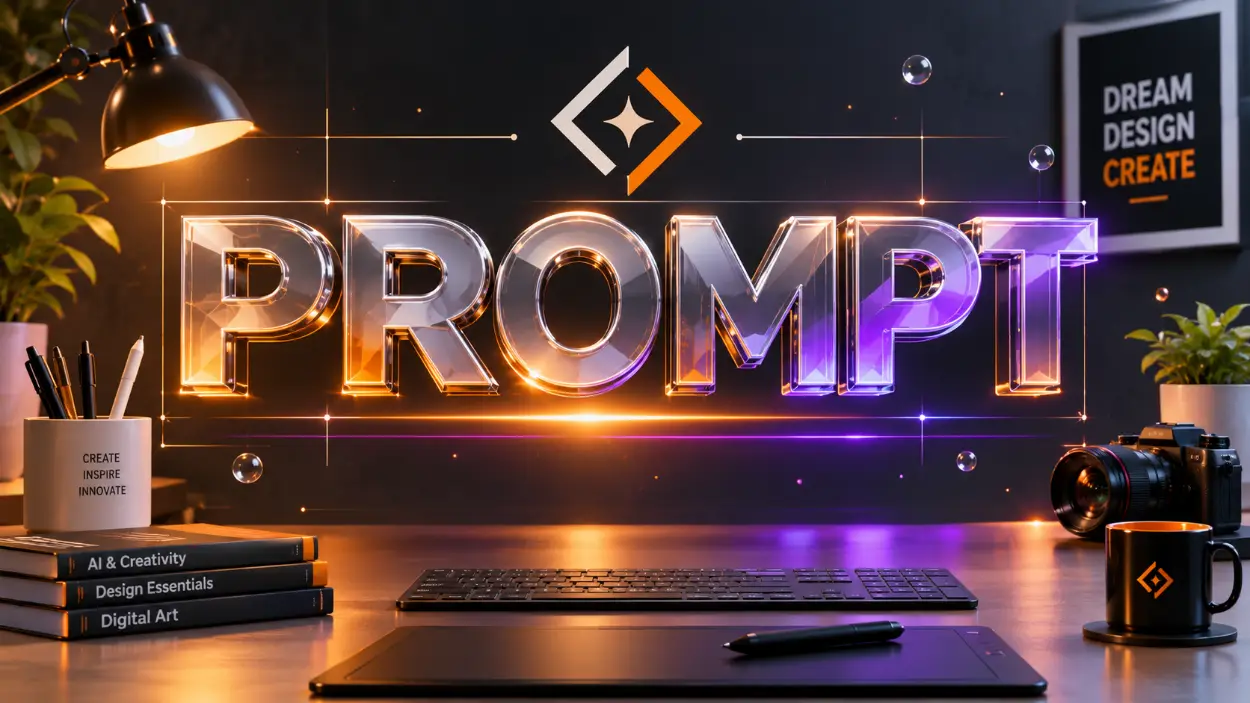
If you've ever tried to generate text in AI images and ended up with garbled letters, spelling errors, or completely unreadable words — you're not alone. This is one of the most searched and most frustrating problems in AI image generation. The good news? In 2025, it's completely solvable. You just need the right formula.
This guide breaks down exactly how to generate text in AI images — whether you want clean typography for a poster, a sharp logo wordmark, a neon sign, or even simple readable text on a t-shirt. We'll cover the best models, the exact prompt structures, real-world examples, and common mistakes to avoid.
Why AI Models Struggle with Text (And Why It's Getting Better)
Before we get into prompts, it helps to understand why AI-generated text has historically been messy.
AI image generators like Stable Diffusion (older versions), early Midjourney, and DALL-E 2 were trained on billions of images — but they learned to understand text in images, not to reproduce it letter by letter. The model sees "text" as a visual pattern, not as a sequence of characters. That's why you'd get something that looked like text but was phonetic nonsense.
The game changed around 2023–2024. Models like Midjourney v6, FLUX.1, DALL-E 3, and Ideogram introduced dedicated text-rendering capabilities. They trained specifically to output readable, correctly-spelled words inside images. And the results have been genuinely impressive — when you know how to prompt them.
The key insight: the model still needs clear, structured instructions. You can't just mention "a sign that says something" and expect perfection. You need to tell the AI exactly what text to render, how it should look, and where it should sit in the composition.
The 5-Part Formula for Generating Clean Text in AI Images
This is the core formula that works across all major models. Think of it as a checklist you run through before you write any prompt.
1. Use Exact Quotation Marks Around Your Text
This is non-negotiable. Every model that supports text rendering — Midjourney, FLUX, DALL-E 3, Ideogram — treats text inside double quotation marks as a literal rendering instruction.
Wrong: a coffee mug that says coffee on it
Right: a coffee mug with the word "COFFEE" printed in bold red lettering
The quotation marks tell the model: this exact string is what you need to render as text, character by character.
2. Keep the Text Short
One to four words is the sweet spot. The longer your string, the higher the chance of a spelling error, a missing letter, or word-blending. This is true even on the best models.
If you need a multi-line design — a poster with a headline and a tagline — write them as two separate instructions:
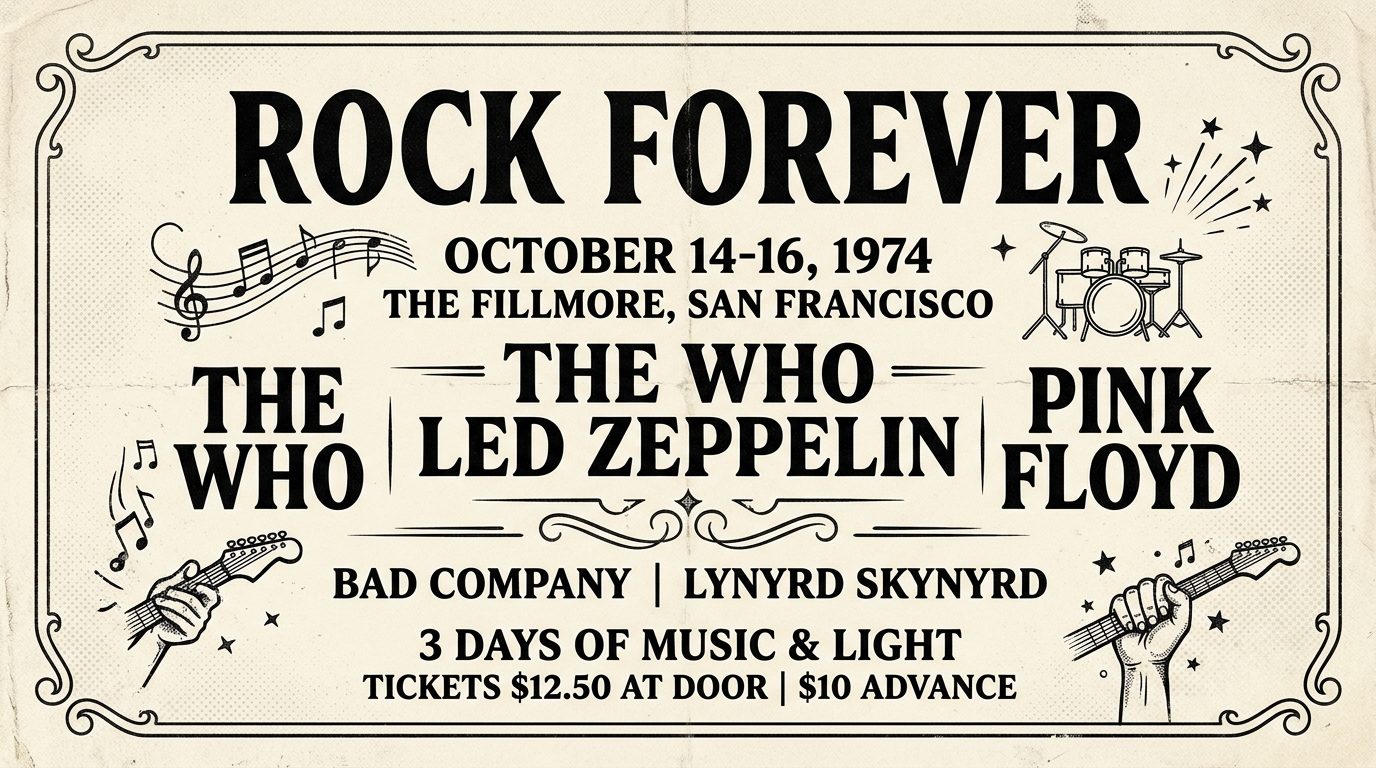
A vintage concert poster. The headline text reads "ROCK FOREVER" in bold black serif typography at the top. Below it, smaller text reads "LIVE 2025" in italic script.
3. Describe the Typography Style
Don't just say "text" — tell the model what kind of text you want. Font style, weight, and aesthetic dramatically change the output. Use specific typography language:
bold sans-serif/thin geometric fontvintage serif/retro block letteringhand-painted script/chalk letteringneon tube light/glowing LED type3D metallic/bubble letter styleminimalist wordmark/editorial typeface
4. Define Placement and Context
Tell the model where the text lives. Is it on a sign? A product? Floating in space? Carved into stone? This context helps the model render the text in a way that feels natural and grounded:
engraved on a marble surfaceprinted across the front of a t-shirtmounted on a brick wall as a metal letter signappearing as a neon sign above a bar entrancewritten in chalk on a dark chalkboard
5. Set the Composition (Background and Lighting)
For clean, readable text — especially for logos — a clean background dramatically helps. Cluttered scenes pull focus away from the text and increase rendering errors.
solid white background, flat vector designdark moody background, text glowingminimalist studio background, centered composition
Model-by-Model Breakdown: Which AI Is Best for Text?
Different models have different strengths. Here's what you actually need to know when choosing which tool to use.
Midjourney v6 and v7
Midjourney added native text rendering in v6. It's reliable for short phrases when you use the right syntax and parameters.
Key tips:
- Always use double quotes in your prompt
- Use
--style rawto reduce Midjourney's artistic interpretation and get cleaner, more literal output - Use
--s 50to--s 100(lower stylize = closer to your prompt) - Midjourney outputs raster images (PNG), not vectors — treat it as a concept tool, not a final production tool
Prompt example:
Minimalist wordmark logo with the text "NOVA" in clean geometric bold sans-serif, centered, flat vector style, solid white background --style raw --ar 1:1 --v 6
Prompt example (signage):
A dark moody coffee shop interior, wooden wall with the hand-painted sign reading "SLOW DOWN" in warm white brush lettering, warm ambient lighting, photorealistic --style raw --ar 16:9
FLUX.1 (by Black Forest Labs)
FLUX.1 is currently one of the best open-source models for generating text in AI images. It was built from the ground up to handle natural language instructions deeply, and its text rendering is significantly better than older Stable Diffusion models.
Key tips:
- FLUX responds to conversational prompting — write complete sentences, not just comma-separated tags
- Use all-caps inside quotes (
"LAUNCH"instead of"launch") for crisper letter rendering - FLUX.1 Pro handles multi-line layouts well — you can describe a headline and a subheading separately
- Available on Hugging Face and several hosted platforms
Prompt example (product label):
A premium olive oil bottle photographed on a marble surface. The label on the bottle reads "GROVE" in elegant thin serif typography at the top, and below it in smaller text reads "Cold Pressed Extra Virgin". Clean minimal label design, cream-colored background, soft natural lighting.
Prompt example (poster):
A bold motivational poster layout. At the top in large black bold sans-serif typography, the text reads "BUILD DIFFERENT". Directly below in smaller clean gray type reads "Every great thing starts here". White background, editorial minimalist layout, professional graphic design.
DALL-E 3 (OpenAI)
DALL-E 3 is integrated into ChatGPT and reads your prompt almost like a human would — descriptively. It's one of the most user-friendly models for beginners because you can write in plain English and it handles layout reasoning well.
Key tips:
- Mention your text using the phrase
reads "..."orsays "..."— these trigger the text-rendering mode - Explicitly state letter style, color, and background contrast
- If the system is rewriting your prompt (via ChatGPT's auto-upsampling), add: "Render the text exactly as written without altering spelling or adding extra words."
Prompt example:
A rustic wooden bakery sign hanging outside a shop. Hand-painted white letters on the sign read "OPEN DAILY". Warm morning sunlight, slight blur in the background, soft photographic feel.
Prompt example (business card):
A clean, modern business card mockup on a gray marble surface. The card reads "JAMES CARTER" in bold dark sans-serif at the top, and below it reads "Creative Director" in lighter thin gray text. Minimalist design, white card, sharp photography.
Ideogram AI
Ideogram was built from day one with text rendering as a core feature, and it's arguably the most reliable model specifically for generating text in AI images. It supports long words, full phrases, and even sentences — something other models struggle with.
Key tips:
- Select the "Typography" style in Ideogram's interface when generating text-focused images
- Ideogram supports aspect ratio control — use 1:1 for logos, 16:9 for banners
- Great for t-shirt designs, posters, and typographic art
Prompt example:
A vibrant retro t-shirt design. Large bold bubble letters read "STAY WILD" in a gradient of sunset orange and hot pink. Small decorative stars and lightning bolts surround the text. Flat vector illustration style, solid black background.
Typography Styles You Can Generate: A Complete Reference
One of the most powerful things about AI text generation is the range of typography styles it can produce. Here are the main categories with example prompts you can adapt.
Neon & Glow Typography
Neon signage has become one of the most popular AI image styles because it's atmospheric, visually striking, and AI handles it really well.
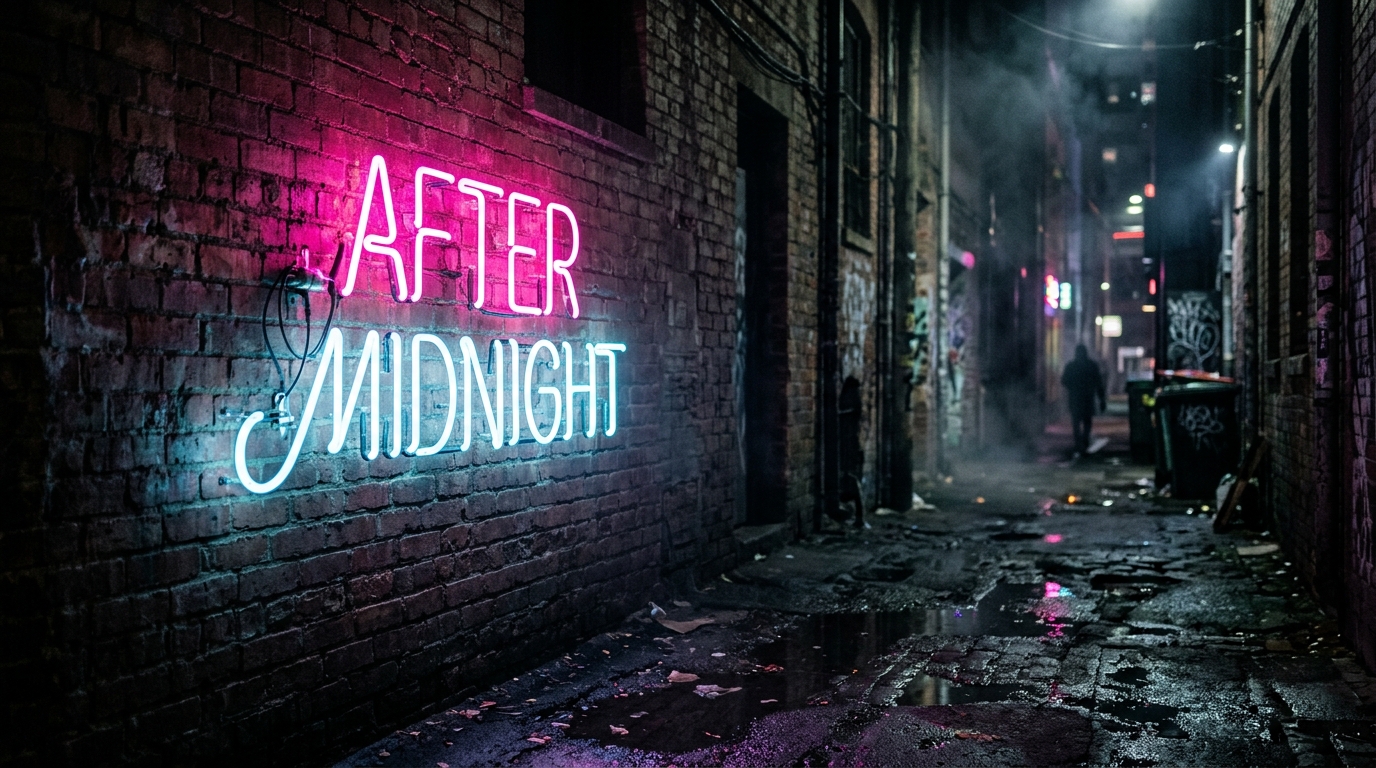
A dark bar interior with a brick wall. A glowing neon sign reads "AFTER MIDNIGHT" in flowing cursive pink neon tubes. The light casts a soft pink glow across the wall and wet floor below.
3D and Volumetric Text
Great for titles, thumbnails, and bold visual statements.
A 3D rendered typography scene. The word "DREAM" is sculpted in smooth glossy white clay letters, sitting on a gradient soft purple surface, studio lighting, clean minimal composition, octane render.
Vintage & Retro Badge Logos
Perfect for brand identity concepts, coffee shop logos, or vintage-inspired packaging.
A retro badge logo design. The text "MOUNTAIN ROAST" curves around the top of a circular badge. In the center is a simple line-art illustration of a mountain peak. Bold vintage serif typography, earthy brown and cream color palette, flat vector style.
Minimalist Wordmarks
The most versatile style — works for tech startups, boutique brands, and personal branding.
Minimalist brand wordmark. The word "LUNE" in clean, thin, geometric sans-serif font. Single color dark navy blue, centered on a solid white background. No icons, no decorations. Pure typographic mark.
Chalkboard and Handwritten
Gives a warm, human, artisanal feel — perfect for food brands, cafes, and lifestyle content.
A dark green chalkboard with neat chalk handwriting that reads "TODAY'S SPECIALS". Below the heading, smaller text reads "Iced Latte" and "Almond Croissant" on separate lines. Soft overhead lighting, cozy cafe feel.
Editorial & Magazine Typography
For high-end content, covers, and editorial designs.
A high-fashion magazine cover mockup. Bold black sans-serif text at the top reads "ESSENCE". Below in smaller italic serif text reads "The Art of Living Well". Clean white background, luxury editorial aesthetic.
Logos + Text: How to Generate AI Logo Concepts
Generating logos with AI is a slightly different challenge than generating text in a scene. For logos, the text is the design. Here's how to approach it.
The Wordmark Formula
A wordmark is just a stylized version of a brand name in text — no icon:
[Brand name in quotes] in [font style], [color], [finish/texture], centered, flat graphic design, solid white background
Example:
"ZENO" in bold geometric sans-serif, single color matte black, centered, flat graphic design, solid white background
The Combination Mark Formula
A combination mark pairs an icon with text:
Logo design featuring [icon description] paired with the text "[NAME]" in [font style]. Minimalist, flat vector, solid background.
Example:
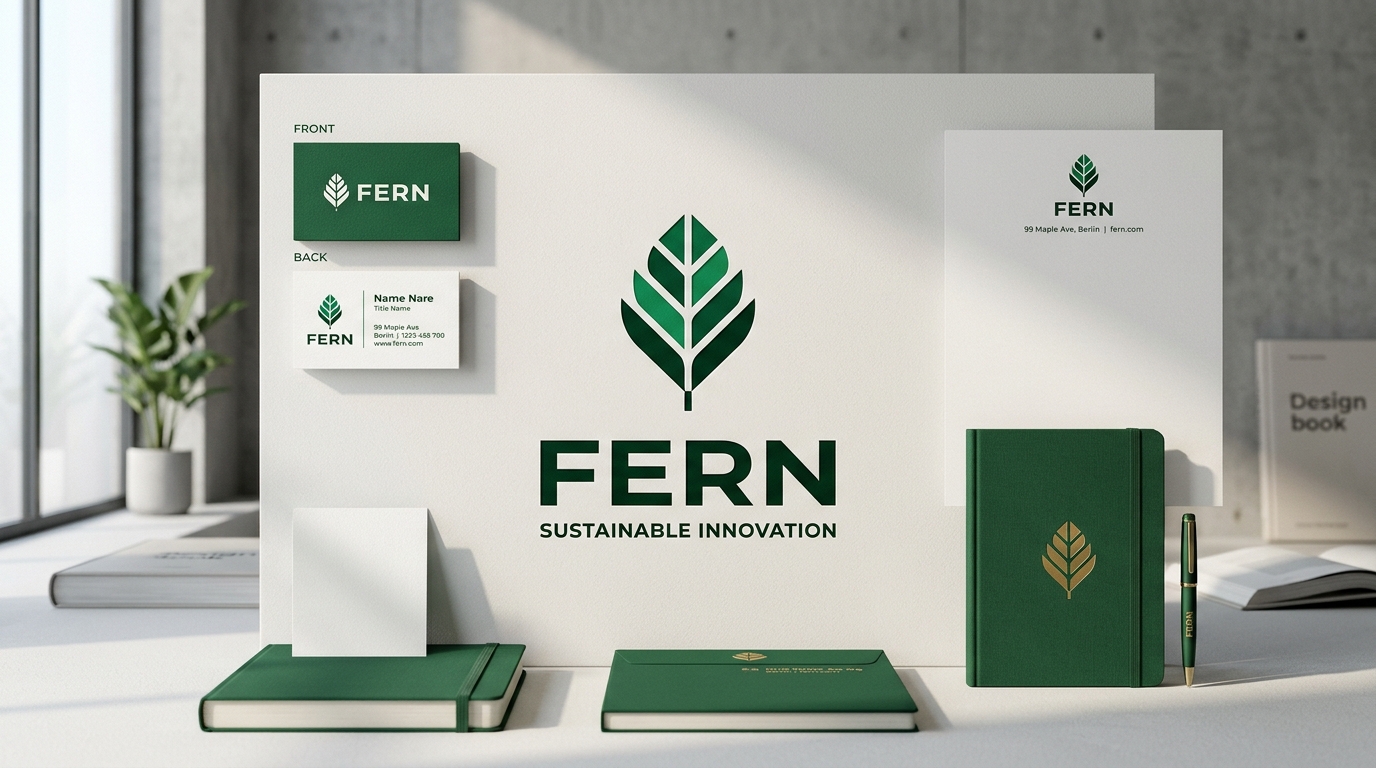
Logo design featuring a simple line-art leaf inside a thin circle, paired with the text "FERN" in clean bold sans-serif below. Forest green color, minimalist, flat vector, solid white background.
Production Reality: AI Logos Need Finishing
This is an important point that most guides skip: AI-generated logos are starting points, not final deliverables. Even the best Midjourney or FLUX output is a raster image (pixels), not a vector file (SVG). Real logos need to scale to any size without losing quality.
The practical workflow:
- Use AI to generate 4–6 concept directions quickly
- Pick the strongest concept and direction
- Recreate it in Adobe Illustrator, Figma, or Canva as a true vector
- Finalize typography using real licensed fonts
This saves designers hours of ideation while keeping full production quality.
Common Mistakes and How to Fix Them
Problem: Garbled or Misspelled Letters
Why it happens: The text string is too long, the model is interpreting it artistically rather than literally, or you didn't use quotation marks.
Fix:
- Shorten to 1–3 words
- Add quotes around the exact text
- Try uppercase letters inside the quotes (e.g.,
"OPEN"instead of"open") - Use Midjourney's "Vary (Region)" or Ideogram's re-roll on just the text area
Problem: Text Blends Into the Background
Why it happens: Insufficient contrast specified. The model chose a text color close to the background.
Fix: Explicitly state the contrast: "bold white text on a dark charcoal background" or "bright yellow text on deep navy blue".
Problem: Extra Random Letters or Words Appear
Why it happens: The model is filling space with text-shaped patterns. Common in Stable Diffusion variants.
Fix: Add negative prompts: extra text, watermark, random letters, typos, blurry text as negatives. For FLUX and Ideogram, rephrase your prompt to be more specific about what text should appear and where.
Problem: Text Looks Pixelated or Blurry
Why it happens: The resolution is too low, or the model is applying too much texture/noise to the text.
Fix: Ask for high resolution, sharp text, crisp edges, 8k detail in your prompt. For Midjourney, use the --upbeta flag or upscale the generation.
Problem: The Logo Has Too Much Clutter
Why it happens: AI tends to add decorative elements, gradients, and embellishments by default.
Fix: Be explicit: no drop shadows, no gradients, no textures, clean flat design, no background elements, isolated on white.
AI Text Generation Tool Comparison
Feature |
Midjourney v6 |
FLUX.1 |
DALL-E 3 |
Ideogram |
|---|---|---|---|---|
Text Accuracy (short) |
Very Good |
Excellent |
Very Good |
Excellent |
Text Accuracy (long phrases) |
Fair |
Good |
Good |
Excellent |
Logo Design |
Good |
Very Good |
Fair |
Very Good |
Style Variety |
Excellent |
Very Good |
Good |
Good |
Ease of Use |
Moderate |
Moderate |
Very Easy |
Easy |
Vector Output |
No |
No |
No |
No |
Open Source |
No |
Yes (Dev) |
No |
No |
Best For |
Artistic concepts |
Logos & signs |
Beginners |
Typography art |
Real-World Use Cases: When to Generate Text in AI Images
Social Media Content
Short, punchy text on visually arresting backgrounds. Think motivational quotes, event announcements, or product launch graphics. DALL-E 3 and Ideogram are both excellent for this.
Example prompt:
A sunset gradient background with the text "START BEFORE YOU'RE READY" in clean white bold sans-serif, centered, motivational poster style.
Product Label and Packaging Mockups
Brands use AI to rapid-prototype label designs before going to a designer. FLUX.1 handles this exceptionally well.
Example prompt:
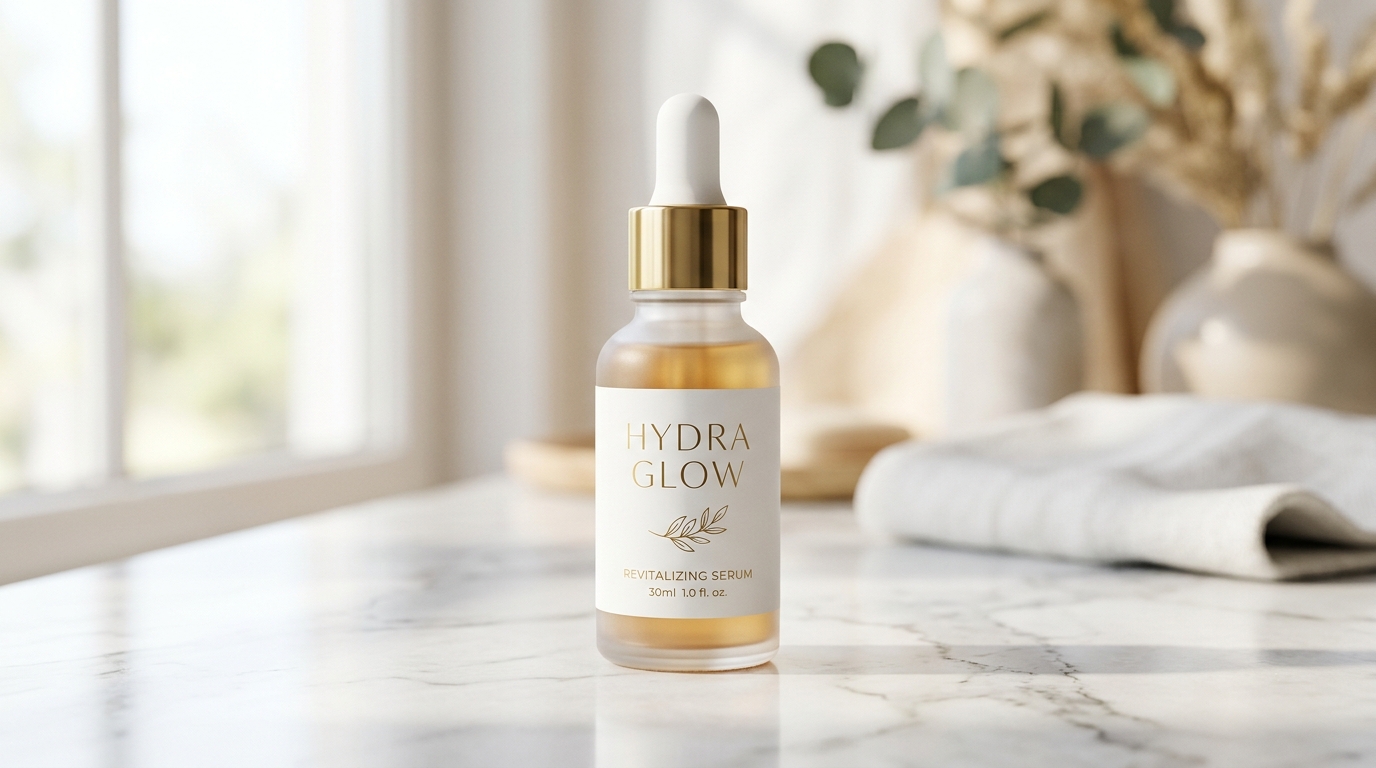
A skincare serum bottle on a white marble surface. The label reads "HYDRA GLOW" in thin elegant serif font with a small botanical line illustration below the text. Premium minimalist packaging, soft diffused lighting.
YouTube Thumbnails and Blog Headers
Bold text overlay on a photorealistic background. For this, use Midjourney v6 or Ideogram.
Example prompt:
A dark cinematic background showing a city skyline at night. In the foreground, large bold white text reads "THE SECRET". High contrast, dramatic lighting, thumbnail-ready composition.
Event and Invitation Graphics
For wedding invitations, birthday posters, or brand event collateral.
Example prompt:
An elegant cream-colored invitation card design with the text "YOU ARE INVITED" in flowing gold calligraphy at the top. Below it, smaller serif text reads "An Evening of Art & Music". Soft floral border illustration, romantic aesthetic.
T-Shirt and Merch Designs
Ideogram and DALL-E 3 are both strong for apparel graphics where text is the centerpiece.
Example prompt:
A retro t-shirt graphic design. Bold distressed vintage lettering reads "ADVENTURE AWAITS". Below the text, a thin outline illustration of pine trees and a mountain. Faded earthy tones, worn-in texture, flat design style.
Pro Workflow: How to Use Promzio to Find and Build Better Text Prompts
If you're doing this regularly — generating text for brand content, social posts, or design mockups — you don't need to reinvent your prompts every time. That's exactly why we built Promzio's prompt library at promzio.com/prompts.
Browse hand-tested, copy-paste ready prompts across image, text, and design categories. Every prompt in the library has been tested on real AI models to verify it actually works. For typography and logo generation specifically, check the image category section at promzio.com/categories where you'll find prompts sorted by style and use case — including neon signs, retro posters, minimalist logos, and more.
If you want to go further and build a fully customized prompt from scratch, use the Promzio prompt builder. It guides you through each element — subject, style, composition, lighting, and text — so you can generate a prompt that works on the first or second try instead of spending hours iterating.
Conclusion: Generate Text in AI Images Like a Pro
Generating clean, readable text and sharp typography in AI images is no longer a matter of luck — it's a matter of method. The formula is straightforward:
Put your exact text in double quotes. Keep it short. Describe the font style. Set the context. Control the composition.
Apply this across Midjourney, FLUX, DALL-E 3, or Ideogram, and you'll get results that look professional and intentional rather than garbled and accidental.
The models are genuinely good now. The limiting factor is almost always the prompt, not the model. Write clearer prompts, and you'll get sharper text — every time.
Start with the Promzio prompt library if you want working templates you can adapt immediately, or dive into the Promzio prompt categories to find prompts built for your specific use case.
The best text you generate in AI will be the prompt you refine until it's exactly right.
Frequently Asked Questions
How do I generate text in AI images without spelling errors?
Which AI image generator is best for generating clean text and typography?
Can I generate a logo with text in AI images?
Why does my AI-generated text look blurry or illegible?
How do I generate neon sign text in AI images?
Does Midjourney support text generation in images?
What is the best prompt formula to generate text in AI images?
Ananya Sharma
Creative Director & Stylized AI Art Curator
Digital illustrator and art director based in Bengaluru. Expert in anime aesthetics, dark fantasy worldbuilding, and concept art prompts for games and publishing.