Tips & Tricks
Promzio Tips & Tricks: Get Better AI Images from the Library
Get more from Promzio's free AI prompt library — browse by category, remix prompts for custom results, match tools to styles, and use the AI Prompt Builder for ideas the library doesn't cover yet.

Introduction: Getting More from Your Promzio Experience
Copying a prompt from Promzio and pasting it into an AI tool is the most straightforward use of the library. But there is much more to explore. With a few specific techniques, you can dramatically increase the quality and relevance of your AI generations — and spend far less time searching for the right prompt.
This guide is not about general AI prompting theory. It is specifically about getting the best results from and with Promzio. Each tip here is grounded in how the library is actually structured and how the prompts are actually written.
Tip 1: Start with the Featured and Trending Sections
The Promzio homepage is organized into several distinct sections, and understanding what each one contains helps you find the right prompt faster.
The Prompt of the Day section highlights one or a few hand-selected prompts that represent some of the most impactful content in the library at that moment. These are excellent starting points because they are chosen for their visual quality and broad applicability.
The Trending section shows prompts that have been editorially selected as representative of current high-quality AI art directions. Right now, trending prompts include styles like:
Temple Twilight: Serene Devotion Beneath a Sacred Shiva Mural — a stunning example of cultural-spiritual editorial photography
Golden Hour Romance: An Intimate Couple Portrait in Nature — one of our most visually striking realistic portrait prompts
Miniature India: A Photorealistic Diorama of Iconic Landmarks — a creative Fantasy & Sci-Fi prompt showcasing Indian landmarks in a miniature diorama style
The Latest section shows the most recently added prompts — the freshest content in the library. If you come to Promzio regularly, starting here lets you discover new styles and techniques before they become widely known.
Tip 2: Use Categories Strategically — Not Just for Browsing
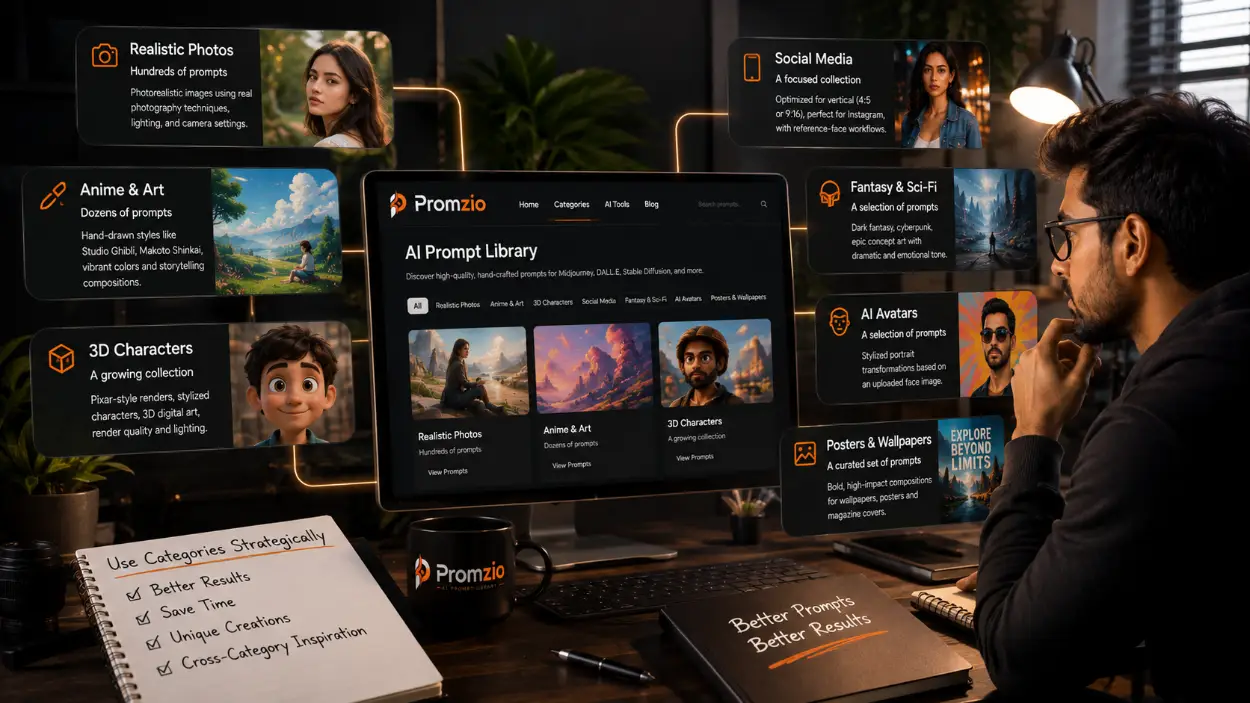
It's tempting to just scroll through the homepage and copy whatever looks interesting. That works — but using the category system strategically gives you better results faster.
Each Promzio category is focused on a specific type of AI output, which means the prompts within it are written for a specific set of techniques and vocabulary. Here is how to use each category effectively:
Realistic Photos (hundreds of prompts): Use these when you want images that look like actual photographs. These prompts use real photography terminology — focal lengths, aperture, film types, lighting setups. The results are photorealistic and editorial in quality.
Anime & Art (dozens of prompts): These prompts reference specific anime art styles like Studio Ghibli and Makoto Shinkai. Use them when you want hand-drawn illustration aesthetics, vibrant colors, and storytelling compositions.
3D Characters (a growing collection of prompts): Best for Pixar-style renders, stylized character designs, and 3D digital art. These prompts specify render quality, lighting rig setups, and surface material properties.
Social Media (a focused collection of prompts): These are optimized for vertical (4:5 or 9:16) compositions perfect for Instagram. Many include reference-face workflows for personal branding content.
Fantasy & Sci-Fi (a selection of prompts): Dark fantasy, cyberpunk, and epic concept art. These prompts use dramatic emotional language and specific fantasy art style references.
AI Avatars (a selection of prompts): Use these with a reference photo. They produce stylized portrait transformations — caricatures, geometric portraits, and illustrated avatars — based on an uploaded face image.
Posters & Wallpapers (a curated set of prompts): Bold, high-impact compositions designed for large-format output. Great for desktop wallpapers, event posters, and magazine cover aesthetics.
Cross-category tip: Some of the most interesting results come from browsing a category you weren't initially looking at. If you are working on a Social Media portrait, spend five minutes browsing Anime & Art. You might find a color palette, a composition idea, or a stylistic modifier that you would never have thought to include — and that makes your final result completely unique.
Tip 3: Match Your Prompt to the Right AI Tool
Promzio prompts work across all major AI image generators, but each tool has its own strengths. Knowing which tool to use for which type of prompt will significantly improve your results.
Midjourney: Excels at artistic, editorial, and stylized imagery. The Realistic Photos and Anime & Art categories tend to perform exceptionally well with Midjourney.
ChatGPT / DALL-E: Strong at following complex structural descriptions. The Social Media and 3D Characters categories work very well here because DALL-E responds precisely to detailed compositional instructions.
Stable Diffusion: Highly flexible and customizable. Works with any category, and particularly shines with Fantasy & Sci-Fi prompts when combined with community-trained models.
Gemini: Google's AI is effective for photorealistic prompts and handles longer, more detailed prompt texts well.
Claude: While primarily a text AI, Claude can be used for prompt refinement — paste a Promzio prompt and ask Claude to modify it for a specific variation before generating in another tool.
Tip 4: The Art of Remixing a Promzio Prompt
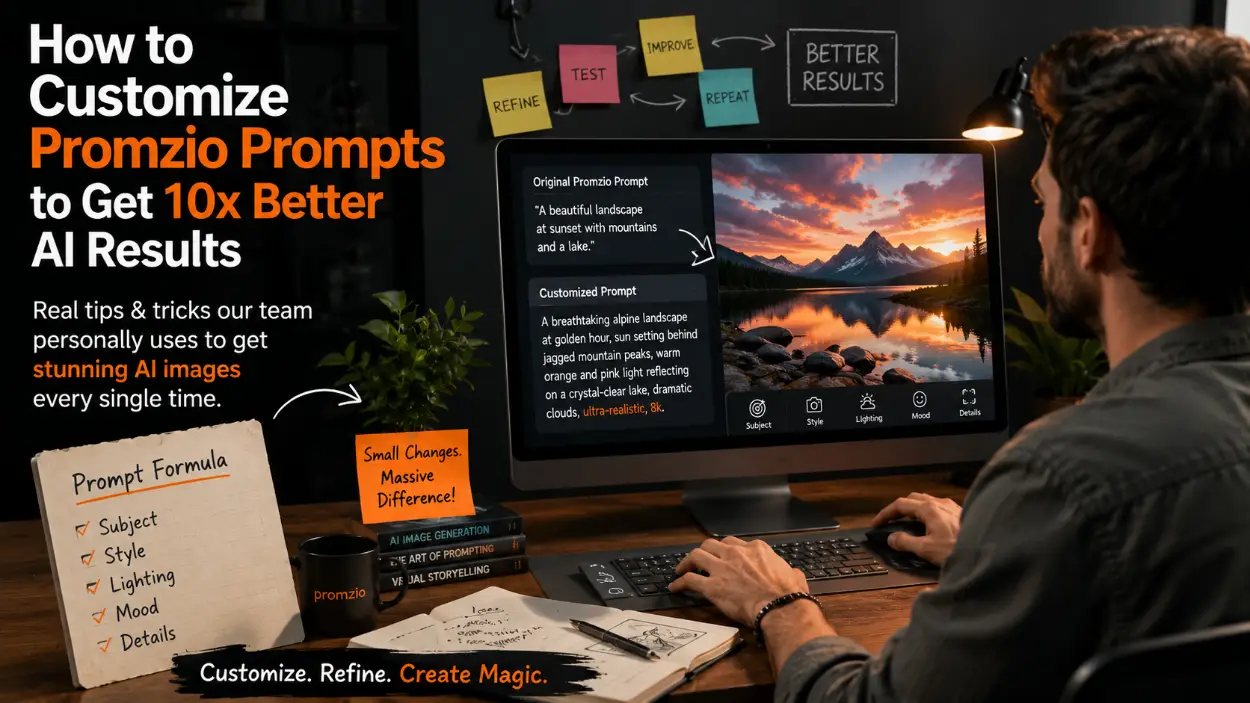
One of the most powerful things you can do with the Promzio library is use our prompts as structural templates rather than copying them exactly. We call this remixing, and it is how you create completely personalized AI images while still benefiting from all the technical quality built into a well-crafted prompt.
Here is the principle: change the subject, keep the structure.
Let's use a specific example. The prompt Golden Hour Romance: An Intimate Couple Portrait in Nature is a trending Realistic Photos prompt. Its technical backbone includes warm golden hour lighting, a natural outdoor environment, a specific camera focal length, and editorial depth of field.
To remix it, you keep all of that technical language exactly as it is — and only change the subject. Instead of "an intimate couple portrait," you write "a solo portrait of a young man in traditional Indian dress." The lighting, the camera setup, the quality parameters — all of that remains, and the new image benefits from all of it.
This technique works across every category in the library. The structural elements of a great prompt — its lighting, its camera perspective, its material descriptions, its atmospheric mood — are transferable to almost any subject. You are essentially borrowing the expertise of the original prompt while making the output entirely your own.
Tip 5: Use the AI Prompt Builder for Completely Custom Ideas
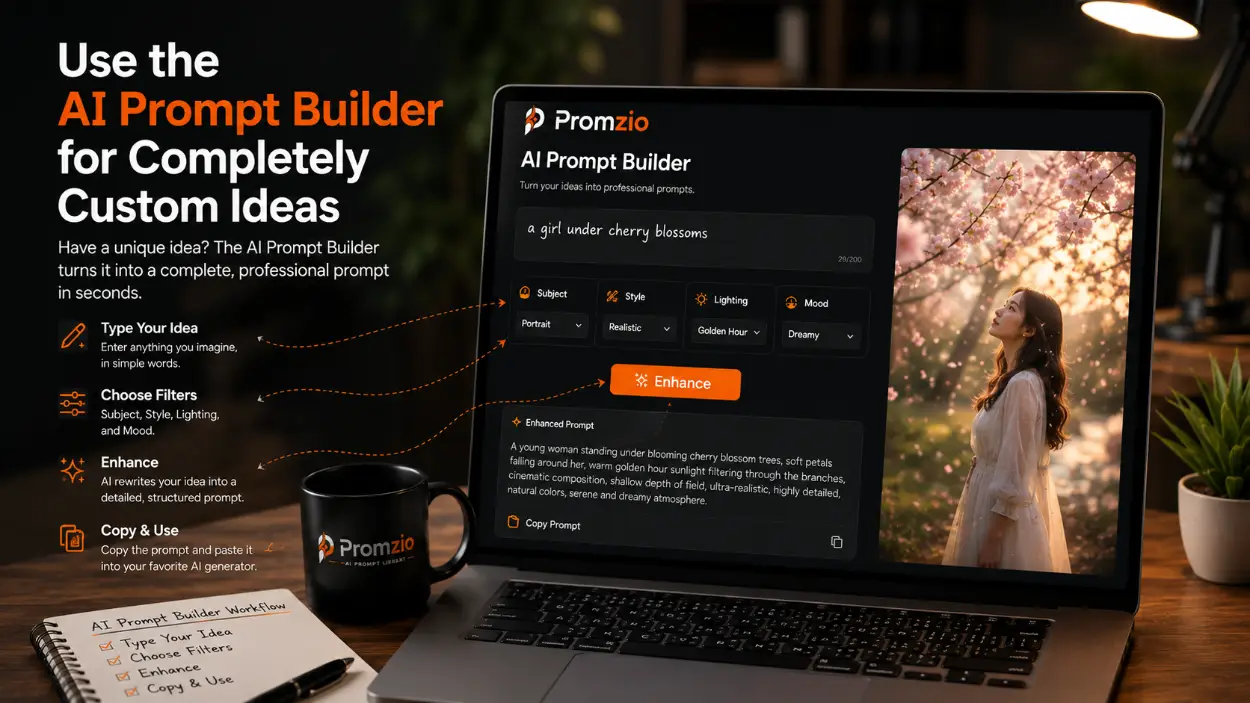
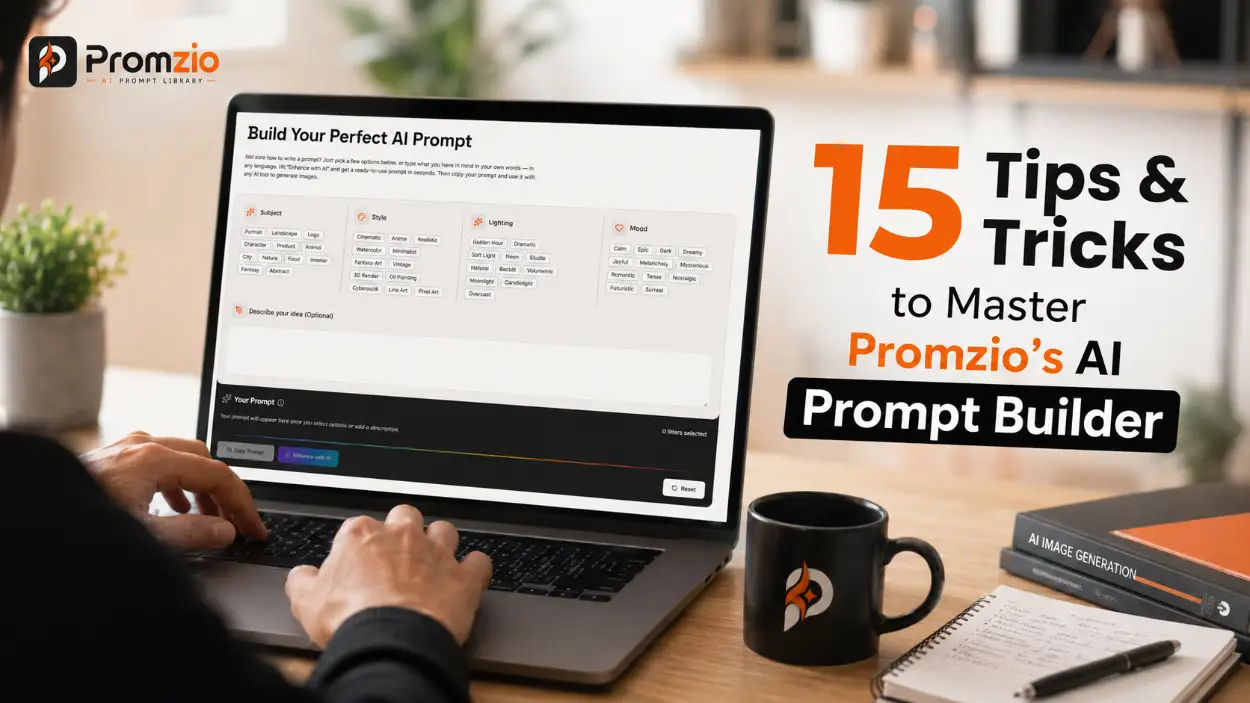
Sometimes you have a very specific idea in mind that you cannot find anywhere in the library. A particular combination of subject, setting, and style that is entirely your own. For these situations, Promzio's AI Prompt Builder on the homepage is the most efficient tool available.
The Builder works like this:
Type your raw idea into the text field. It can be very simple — "a girl under cherry blossoms" or "a cyberpunk city from above at night."
Select filter options across four categories:
Subject: Portrait, Landscape, Character, Animal, City, Food, Interior, Fantasy, Abstract, and more
Style: Cinematic, Anime, Realistic, Watercolor, Minimalist, Fantasy Art, Vintage, 3D Render, Oil Painting, Cyberpunk, Line Art, Pixel Art
Lighting: Golden Hour, Dramatic, Soft Light, Neon, Studio, Natural, Backlit, Volumetric, Moonlight, Candlelight, Overcast
Mood: Calm, Epic, Dark, Dreamy, Joyful, Melancholy, Mysterious, Romantic, Tense, Nostalgic, Futuristic, Surreal
Click Enhance and the AI rewrites your input into a complete, professionally structured prompt.
Copy the result and paste it into your AI generator of choice.
A key tip for the Builder: you don't have to select a filter in every category. If you only want to specify the style and mood but leave the lighting to the AI, select just those two filters. The Builder works well with partial selections — it fills in the missing elements based on what you have provided.
Tip 6: Understand What the Prompt Card Tells You
Every prompt in the Promzio library is displayed as a card with two key pieces of information: the image and the prompt text.
The image is the actual output generated using that prompt — not a curated photoshoot image and not a digitally altered example. It is what the AI produces when you use the prompt. This means you can make an informed decision about whether a prompt matches your goal before you copy a single word.
The category and tool indicator on the card also tells you the type of output you are working with. If the card shows "Midjourney" as the associated tool, that prompt was tested and optimized with Midjourney's model. It will still produce good results in other tools, but Midjourney will likely give you the closest match to the example image.
Tip 7: Stay Updated with the Promzio Newsletter
If you use AI image generation regularly, staying current with new prompt styles and techniques matters. The landscape changes fast — new AI models are released, new visual styles emerge, new techniques become possible.
Promzio sends a weekly newsletter that features new additions to the library. Subscribing is a way to see fresh prompts every week without having to remember to check the site — new styles, new categories being filled out, and new featured prompts land directly in your inbox.
Subscription is optional and free. You can unsubscribe at any time from within any email we send.
Tip 8: Follow Promzio on Social Media
We share new prompts, AI art generated from the library, and tips across our social channels. If you want to see what the Promzio library produces in practice, following us is the fastest way:
X (Twitter): @promzio
Instagram: @promzio
Reddit: u/promzio_official
Conclusion
Promzio is designed to make the process of finding, copying, and using great AI prompts as fast and frictionless as possible. But there is depth beneath the simple copy-and-paste experience — depth that significantly improves your results when you know how to access it.
Browse the Featured and Trending sections to see what is working right now. Use categories to match your creative goal to the right type of prompt. Match your prompt to the strengths of your AI tool. Remix prompts by changing the subject while keeping the structural backbone. Use the Builder when you need something custom. And let the actual images on each card guide your choices.
hundreds of free prompts. 10 categories. One AI Prompt Builder. All free. That is Promzio — and these tips are how you make the most of it.
Frequently Asked Questions
What is the difference between the Featured, Trending, and Latest sections on Promzio?
How do I remix a Promzio prompt to get a personalized result?
Which AI tool should I use with Promzio prompts?
How does the AI Prompt Builder work and what filter options are available?
Does Promzio offer a way to stay updated with new prompts?
Are the images shown on Promzio prompt cards real AI outputs?

Rohan Varma
Senior AI Stylist & Editorial Concept Designer
Fashion visualizer and prompt researcher from New Delhi. Specializes in luxury editorial styling, Indian ethnic fashion, and haute couture digital concepts.