Tips & Tricks
AI Art Aspect Ratios Cheat Sheet: How to Pick the Best Dimensions for Social Media, Wallpapers & Print
Stop getting awkward croppings and distorted renders. This comprehensive AI art aspect ratio cheat sheet breaks down the exact dimensions, prompt parameters, and pixel resolutions for social media, wallpapers, and print across Midjourney, Flux, and SDXL.
Quick Answer: The Master AI Art Aspect Ratio Cheat Sheet
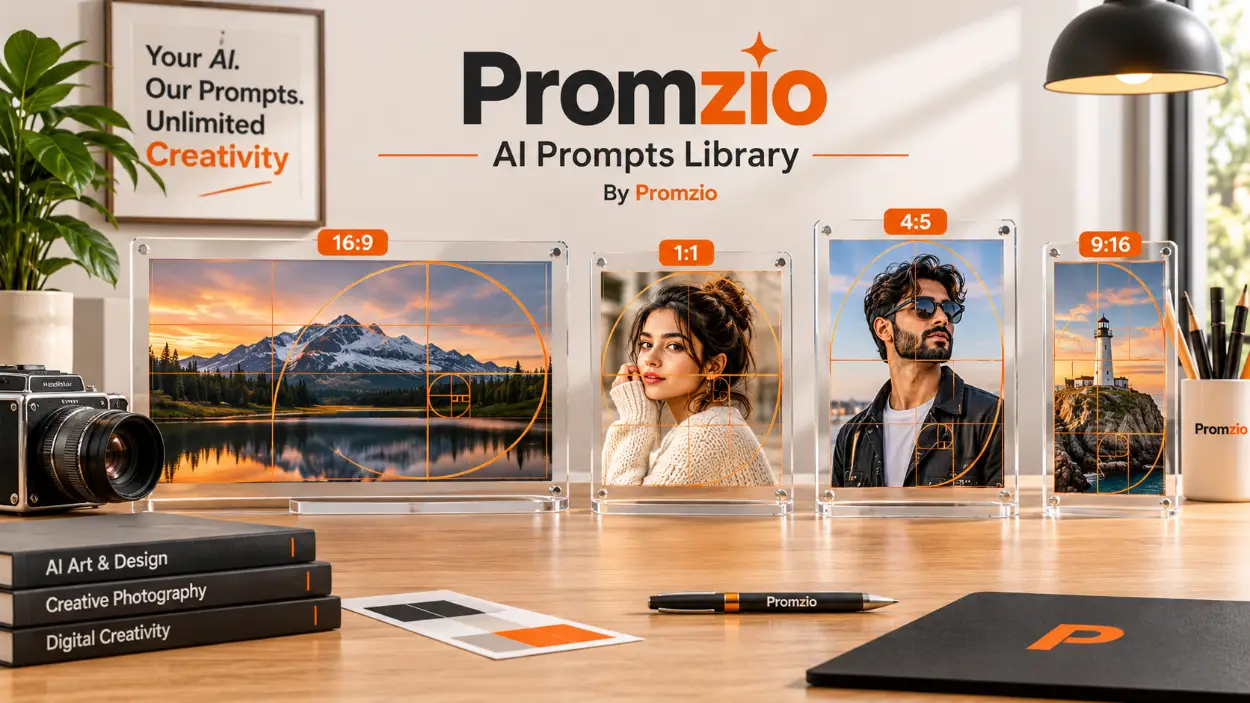
If you need the right aspect ratio right now without reading through the technical science, use this quick reference table. It maps the most common creative use cases directly to their ideal ratio, standard render resolutions, tool command parameters, and compositional focal points:
Use Case / Target Output | Aspect Ratio | Midjourney Parameter | Flux / SDXL Resolution | DALL-E 3 Equivalent | Composition & Focal Point Tip |
|---|---|---|---|---|---|
Instagram Feed (Portrait) | 4:5 |
| 896 × 1120 px | Vertical (1024 × 1792, crop to 4:5) | Maximizes mobile screen estate; place eyes on top third |
Instagram Feed (Square) | 1:1 |
| 1024 × 1024 px | Square (1024 × 1024) | Balanced radial symmetry; center the subject |
Instagram Stories & Reels / TikTok | 9:16 |
| 768 × 1344 px | Vertical (1024 × 1792) | Keep essential details in the middle 60% vertical safe zone |
YouTube Video Thumbnail | 16:9 |
| 1344 × 768 px | Landscape (1792 × 1024) | Place subject on left/center; keep bottom-right clear for time badge |
X (Twitter) In-Feed Landscape | 16:9 |
| 1216 × 688 px | Landscape (1792 × 1024) | Clean single-panel display; avoids vertical preview crops |
Mobile Lock Screen / Wallpaper | 9:16 / 9:19.5 |
| 768 × 1344 px | Vertical (1024 × 1792) | Leave top 35% clean or moody for digital clock and widgets |
Desktop 4K & QHD Monitor | 16:9 |
| 1344 × 768 px (upscaled) | Landscape (1792 × 1024) | Panoramic horizons, rule of thirds, wide cinematic negative space |
Ultrawide Gaming Display | 21:9 |
| 1536 × 640 px (upscaled) | Landscape (outpaint needed) | Wide environmental vistas; avoid placing solitary subjects at far edges |
Standard Fine Art Poster (ISO A4/A3) | 1:1.414 (~5:7) |
| 832 × 1184 px (upscaled) | Vertical (upscale to 300 DPI) | Standard gallery proportion; add 3mm bleed margin for edge trimming |
Gallery Canvas & Photo Frame | 2:3 |
| 832 × 1248 px (upscaled) | Vertical (upscale to 300 DPI) | Classic 35mm film balance; best for fine art portraiture and wall prints |
Introduction: The Invisible Trap in AI Image Composition
You write a breathtaking prompt. The lighting is cinematic, the color grading is dialed in, and the facial fidelity is photorealistic. But when you upload that render as an Instagram portrait or set it as your phone wallpaper, everything falls apart.
Heads get severed by automatic cropping algorithms. Hands get sliced off at the wrist. Key environmental background details vanish behind mobile navigation overlays, and an image that looked magnificent inside Discord or WebUI feels cramped, off-center, or distorted.
Even worse, you might attempt to "fix" the image after the fact by stretching the canvas in an image editor or manually cropping a 1:1 square into a 9:16 vertical banner. The result is always a loss in image clarity, awkward composition, and wasted time.
This happens because generative models do not simply render pixels onto an arbitrary canvas like digital illustration software. In generative AI, aspect ratio governs the entire compositional logic of the diffusion process.
When an AI model generates an image in a wide landscape ratio (16:9), its cross-attention layers naturally look for panoramic elements: wide horizons, atmospheric depth, leading lines, and environmental context. When you specify a tall vertical ratio (9:16 or 4:5), the model shifts attention toward verticality: full-body poses, vertical architecture, towering trees, and close-up portraits.
If you generate an image with the wrong aspect ratio upfront, you are fighting against the foundational physics of how generative neural networks frame their subjects.
This AI Art Aspect Ratio Cheat Sheet is designed to eliminate guesswork permanently. Whether you are generating promotional assets for commercial social media campaigns, designing high-resolution desktop wallpapers, or preparing 300 DPI fine-art prints for physical framing, this guide covers exact ratios, pixel dimensions, prompt parameters, and compositional rules for Midjourney, Flux.1, Stable Diffusion, and DALL-E 3.
What Is an Aspect Ratio? (And Why AI Handles It Differently)
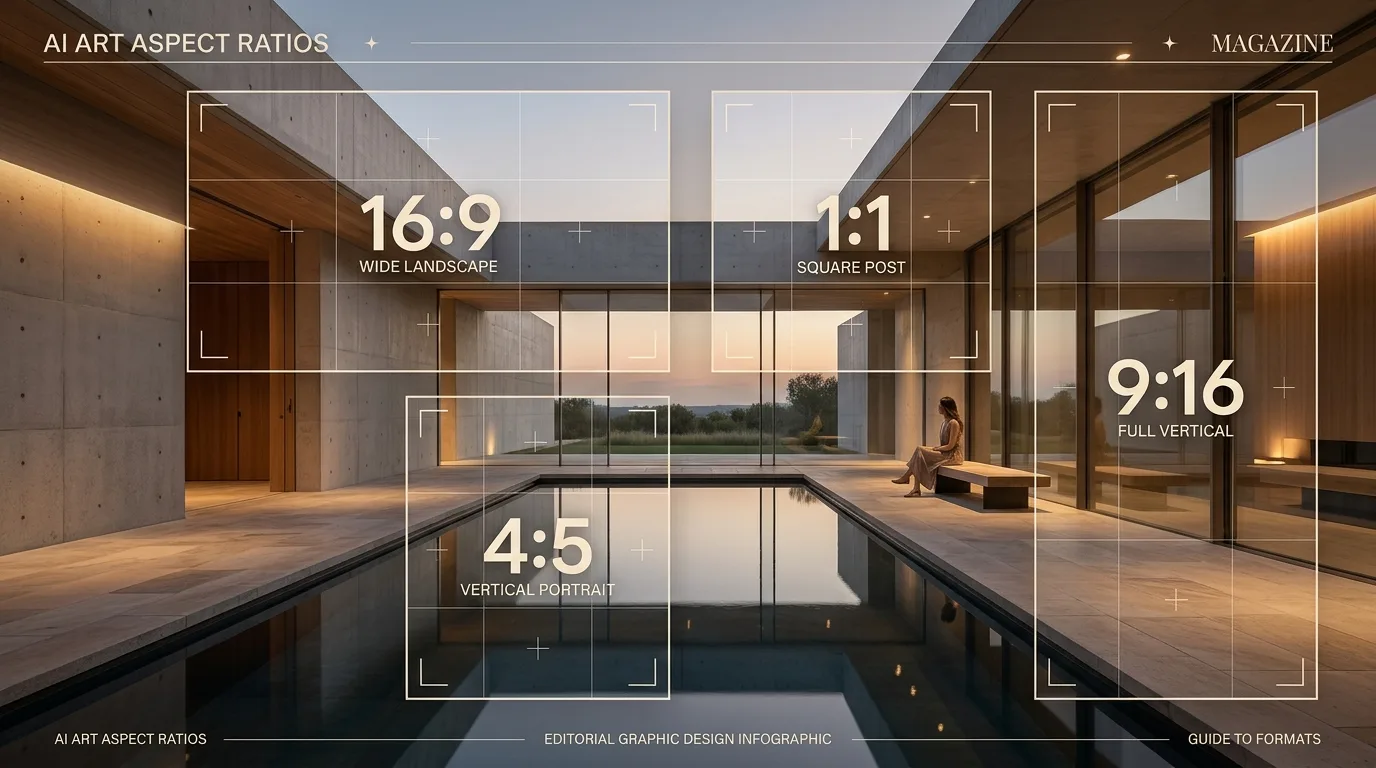
At its fundamental level, an aspect ratio in visual media describes the proportional relationship between the width and height of an image. It is expressed as two numbers separated by a colon (X:Y), where:
X represents the horizontal width.
Y represents the vertical height.
An aspect ratio tells you the shape of the image, not its absolute resolution in pixels. An image that is 1080 × 1080 pixels and an image that is 4096 × 4096 pixels share the exact same 1:1 aspect ratio. Similarly, an image measuring 1920 × 1080 pixels and an Ultra-HD image measuring 3840 × 2160 pixels both possess a 16:9 widescreen ratio.
The Latent Diffusion Difference: Why Aspect Ratio Bucketing Matters
In traditional digital graphic design, you set your canvas to any arbitrary dimension you want—say, 1143 × 791 pixels—and start painting. Generative AI models cannot do that.
Modern generative models—including Midjourney v6, Flux.1, and Stable Diffusion XL (SDXL)—operate inside a compressed mathematical space called the latent space. During training, these models ingest hundreds of millions of images grouped into discrete "resolution buckets" to learn visual relationships at specific aspect ratios without introducing spatial distortion.
When you request an image:
The AI selects the closest latent resolution bucket (typically totaling approximately 1,048,576 pixels, or 1 megapixel).
The model organizes its denoising schedule across that specific spatial grid.
If you ask for a ratio that strays wildly outside the model's trained bucket boundaries, the network gets confused.
This is the hidden reason behind the notorious "double head", "torso repetition", or "stretched limbs" bugs in local tools like Stable Diffusion. If you ask a model trained on 1024 × 1024 squares to render a custom 512 × 1536 canvas in a single step, the model runs out of vertical contextual understanding and hallucinates a second body or head to fill the vacant latent space.
Understanding your tool's native handling of dimensions is the first line of defense against deformed generations. For an in-depth breakdown of how newer architectures handle these attention mechanisms compared to legacy platforms, explore our deep-dive analysis on Flux.1 vs Midjourney v6.
Social Media Aspect Ratios: Sizing for Maximum Engagement
Every social media platform enforces strict viewport constraints. If you feed a platform an incompatible dimension, its algorithmic feed will aggressively center-crop your image, often destroying the visual narrative.
Here is how to optimize your AI generations for every major network.
1. Instagram: Feed Posts, Carousels, and Stories
Instagram remains the most visually demanding platform on the web. It supports three distinct aspect ratios for in-feed media, alongside a unified full-screen format for Stories and Reels.
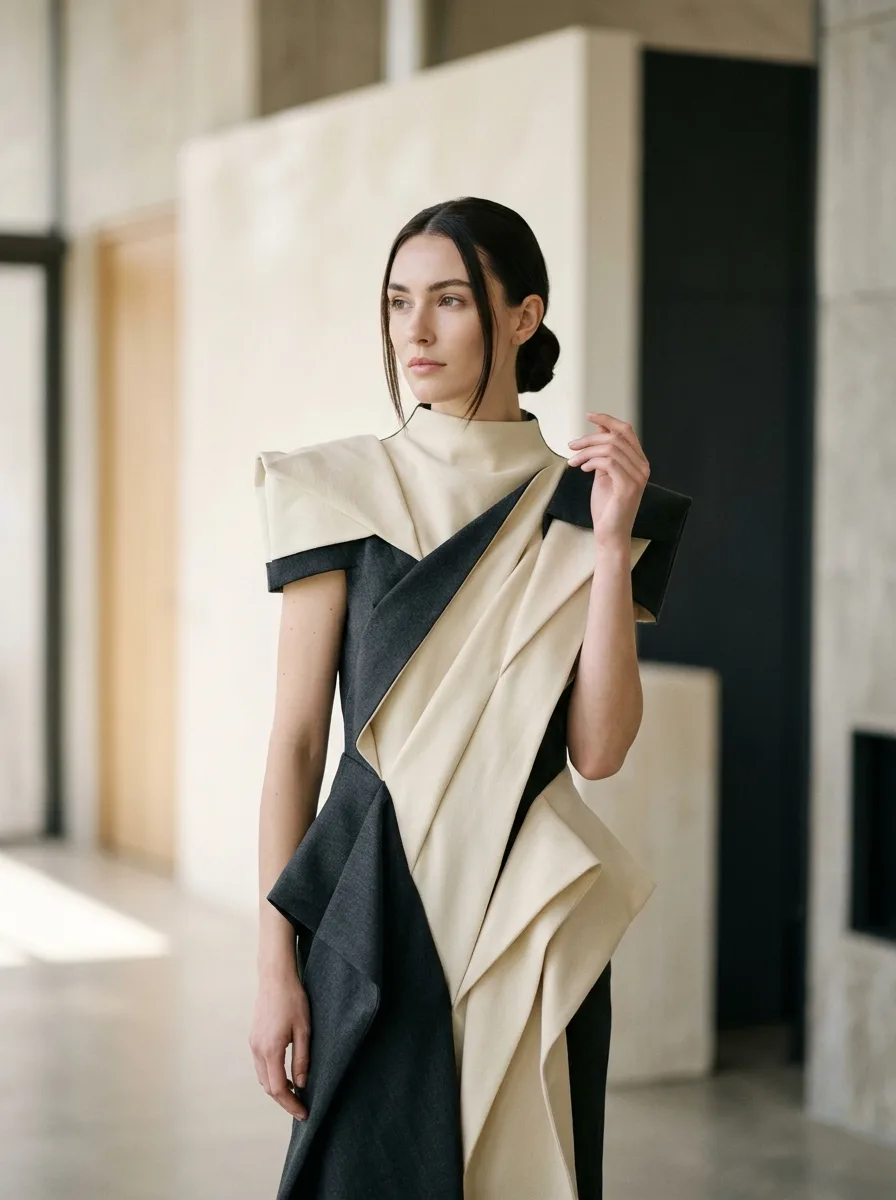
Instagram Portrait Feed (4:5) — The Undisputed Engagement King
Aspect Ratio:
4:5Optimal Export Dimension: 1080 × 1350 px
Midjourney Parameter:
--ar 4:5Flux / SDXL Native Generation: 896 × 1120 px
Why it matters: On a mobile smartphone, screen real estate translates directly to dwell time. A
4:5vertical portrait occupies nearly 80% more vertical screen space than a traditional1:1square post. As users scroll through their feeds, a4:5post pushes competing content completely off screen, commanding undivided attention.Compositional Tip: Keep your subject's primary focal point (such as the eyes in a human portrait) along the upper horizontal third of the frame. Because Instagram displays a square
1:1preview on user profile grids, ensure the central square of your4:5artwork contains the critical elements so your profile portfolio remains cohesive.
Instagram Square Feed (1:1) — The Balanced Classic
Aspect Ratio:
1:1Optimal Export Dimension: 1080 × 1080 px
Midjourney Parameter:
--ar 1:1Flux / SDXL Native Generation: 1024 × 1024 px
Best for: Symmetrical architecture, minimalist product mockups, circular mandala art, and close-up character avatars. Check out our curated catalog of prompts for AI Avatars to see how radial balance elevates square portraiture.
Instagram Stories & Reels (9:16) — Full-Screen Immersive
Aspect Ratio:
9:16Optimal Export Dimension: 1080 × 1920 px
Midjourney Parameter:
--ar 9:16Flux / SDXL Native Generation: 768 × 1344 px (upscaled to 1080 × 1920)
The Safe Zone Rule: Instagram places UI elements (account handle, reply bar, audio tags, and three-dot menus) over the top 14% and bottom 20% of the screen. Keep your key subject, typography, and logos strictly within the central 60% vertical safe corridor (between pixel rows 270 and 1650). According to official Instagram media resolution guidelines, maintaining recommended aspect ratios prevents severe automatic compression and unwanted blurriness.
2. YouTube: High-Click-Through Thumbnails (16:9)
A thumbnail is the single most critical factor determining whether an audience clicks your video or scrolls past it.
Aspect Ratio:
16:9Standard Resolution: 1280 × 720 px (minimum) / 1920 × 1080 px (recommended for crisp 4K displays)
Midjourney Parameter:
--ar 16:9Flux / SDXL Native Generation: 1344 × 768 px or 1280 × 720 px
Compositional Pitfall (The Timestamp Trap): YouTube places a black timestamp pill (e.g.,
14:25) over the bottom-right corner of every thumbnail across mobile and desktop interfaces. Google's documentation on YouTube video thumbnail best practices emphasizes that placing text, character faces, or expressive logos in that corner renders them completely illegible. Always bias your primary subject toward the left or center of your prompt:
Prompt example:
cinematic wide shot of a futuristic cyberpunk hacker examining glowing holographic schematics, positioned on the left side of frame, expansive dark neon server room background on the right, high contrast, clean negative space --ar 16:9
3. X (Twitter) & LinkedIn: Clean In-Feed Previews
Both X and LinkedIn have migrated toward dynamic media feeds, but horizontal landscapes remain the safest bet for consistent cross-platform presentation.
X (Twitter) Landscape Feed
Aspect Ratio:
16:9(or2:1for cards)Recommended Dimension: 1200 × 675 px
Midjourney Parameter:
--ar 16:9or--ar 2:1Why avoid extreme tall ratios on X: While mobile X feeds support tall images, the desktop web client will aggressively center-crop tall vertical images (
9:16) into a letterboxed strip until clicked. For reliable, uncropped visibility across all platforms, stick to16:9.
LinkedIn Shared Image & Banners
Aspect Ratio:
1.91:1(link preview) or4:5(mobile document/post)Standard Dimension: 1200 × 628 px (links) or 1080 × 1350 px (infographic/slide)
Midjourney Parameter:
--ar 1200:628(or--ar 16:9)Pro Tip: If you are producing content for professional outreach, examine our collection of Social Media Prompts to discover layouts engineered specifically for editorial and enterprise visibility.
Wallpapers & Screens: Mobile, Desktop, and Ultrawide Ratios
Wallpapers demand a completely different prompt engineering approach than social media visuals. When designing a wallpaper, the art must serve as a functional backdrop rather than an attention-grabbing advertisement. It needs to accommodate icons, date and clock widgets, and system taskbars without visual friction.
1. Mobile Phone Wallpapers (9:16 and 9:19.5)
Modern smartphones have evolved past traditional 9:16 screens to taller, narrower display form factors with edge-to-edge OLED panels.
iPhone (12 through 16 Pro Max): Approximately
9:19.5(native resolutions vary between 1170 × 2532 px and 1290 × 2796 px)Modern Android Flagships (Samsung S24/S25 Ultra, Pixel):
9:19.5to9:20(1080 × 2340 px or 1440 × 3120 px)Midjourney Parameter:
--ar 9:16(universal) or--ar 9:19.5(custom fit)Flux / SDXL Native Generation: 704 × 1536 px or 768 × 1344 px (followed by upscaling)
The "Clock & Notch" Clearance Rule
The top 30% of a modern smartphone lock screen is dominated by the digital clock, battery indicator, and camera dynamic island. If your prompt generates high-frequency detail—like a person's eyes, complex typography, or dense machinery—in that upper sector, the clock text becomes unreadable.
How to structure wallpaper prompts:
Instruct the AI to push key visual interest into the lower half while keeping the sky, ceiling, or atmosphere soft and uncluttered:
Prompt recipe:
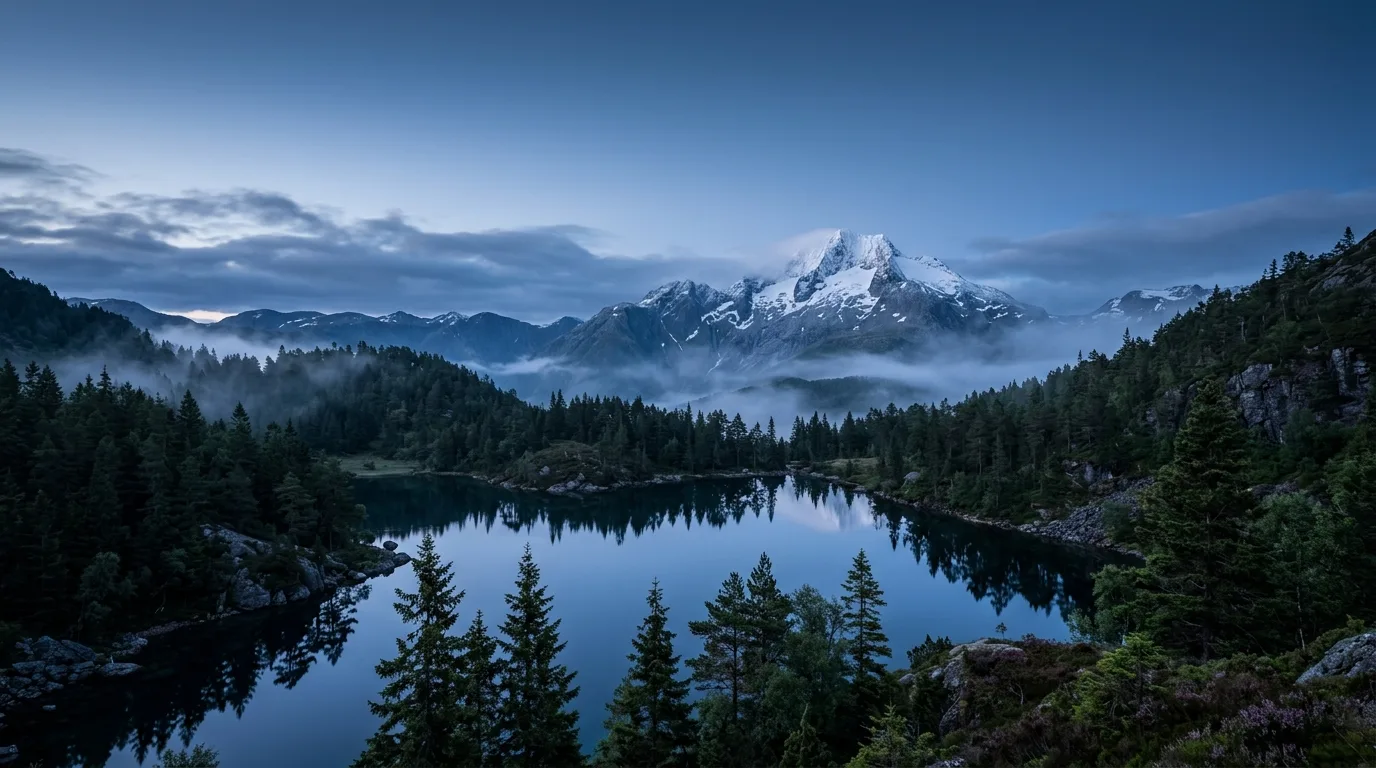
minimalist vast lone pine tree standing on a misty foggy hillside, deep twilight blue gradient atmosphere, tranquil moody aesthetic, subject anchored in the lower third of the frame, soft empty upper sky with gentle vignette --ar 9:19.5
For more aesthetic inspiration across aesthetic horizons and atmospheric backdrops, explore our dedicated collection of Posters & Wallpapers prompts.
2. Desktop Monitors (16:9) and Ultrawide Displays (21:9)
Desktop setups vary from standard Full HD (1080p) and Quad HD (1440p) to 4K UHD and ultra-panoramic curved monitors.
Display Format | Common Resolution | Aspect Ratio | Midjourney Syntax | Recommended Composition Strategy |
|---|---|---|---|---|
Standard HD / QHD | 1920 × 1080 / 2560 × 1440 | 16:9 |
| Off-center focal points; leave left third open for desktop app icons |
4K Ultra HD | 3840 × 2160 | 16:9 |
| High macro-detail, deep dynamic range, textured landscape horizons |
Ultrawide Monitor | 3440 × 1440 / 2560 × 1080 | 21:9 |
| Sweeping cinematic horizons; continuous panoramic terrain |
Super Ultrawide (Dual QHD) | 5120 × 1440 | 32:9 | Outpainting required | Do not generate in a single pass; generate 16:9 and expand via outpaint |
Solving the 21:9 Tiling Problem
When you generate an ultrawide ratio like --ar 21:9 directly inside diffusion models, the AI often gets tempted to repeat visual elements (such as rendering two moons or multiple identical trees side by side).
To fix this:
Avoid generic landscape terms. Specify an explicit single vanishing point (e.g., "single infinite highway stretching toward a solitary distant mountain").
Emphasize wide-angle camera optics in your prompt (e.g., "shot on 14mm anamorphic lens, expansive field of view, no repeating patterns").
If using local tools like ComfyUI, generate a standard
16:9image first, then use Latent Inpainting or Outpainting to expand the canvas horizontally to21:9.
Physical Print & Fine Art: DPI Math, Bleed Margins, and Canvas Ratios
Transitioning from screen pixels to physical paper is where 90% of AI artists hit a wall. An image that looks razor-sharp on an iPhone OLED screen can look like a pixelated, muddy mess when printed on a 24 × 36 inch canvas.
To produce gallery-grade physical art, you must master the relationship between aspect ratios, physical inches, and print resolution (DPI).
The 300 DPI Gold Standard Explained
Monitors render images at screen densities typically between 72 and 120 pixels per inch. High-end printing presses, however, require 300 DPI (Dots Per Inch)—meaning 300 individual droplets of ink for every linear inch of paper—to render smooth gradients and crisp edges without visible dot patterns.
The mathematical formula for physical print preparation is simple and non-negotiable:
Required Pixels = Print Width in Inches × 300
Required Height in Pixels = Print Height in Inches × 300
If you want to print an 8 × 10 inch photograph:
Width: 8 \times 300 = 2,400\text{ pixels}
Height: 10 \times 300 = 3,000\text{ pixels}
Total Resolution Needed: 2400 × 3000 pixels (7.2 Megapixels)
If you attempt to print a standard raw Midjourney or Flux output (which outputs at roughly 1024 × 1024 or 1344 × 768 pixels) at 8 × 10 inches without upscaling, your print density drops to roughly 128 DPI, producing visible blur and jagged artifacts.
The Print Aspect Ratio & Dimension Matrix
Physical frames and art paper follow standardized photographic and international paper sizes. Here is how standard physical frame dimensions map to AI generation ratios:
Print Size (Inches) | Metric Equivalent | Native Aspect Ratio | Midjourney Parameter | Required Resolution at 300 DPI | Recommended Frame Use |
|---|---|---|---|---|---|
4 × 6 in | 10 × 15 cm | 2:3 |
| 1200 × 1800 px | Standard postcard & photo prints |
8 × 10 in | 20 × 25 cm | 4:5 |
| 2400 × 3000 px | Classic portrait photography & gallery mounts |
11 × 14 in | 28 × 35 cm | 11:14 (~4:5) |
| 3300 × 4200 px | Commercial wall displays & art prints |
12 × 18 in | 30 × 45 cm | 2:3 |
| 3600 × 5400 px | Small poster format & modern art prints |
18 × 24 in | 45 × 60 cm | 3:4 |
| 5400 × 7200 px | Standard architectural & band posters |
24 × 36 in | 60 × 90 cm | 2:3 |
| 7200 × 10800 px | Large statement canvas & movie one-sheets |
ISO A4 Sheet | 210 × 297 mm | 1:1.414 (~5:7) |
| 2480 × 3508 px | International office, magazine & document print |
ISO A3 Poster | 297 × 420 mm | 1:1.414 (~5:7) |
| 3508 × 4960 px | Mid-size international poster standard |
Square 12 × 12 in | 30 × 30 cm | 1:1 |
| 3600 × 3600 px | Vinyl record sleeves & square gallery frames |
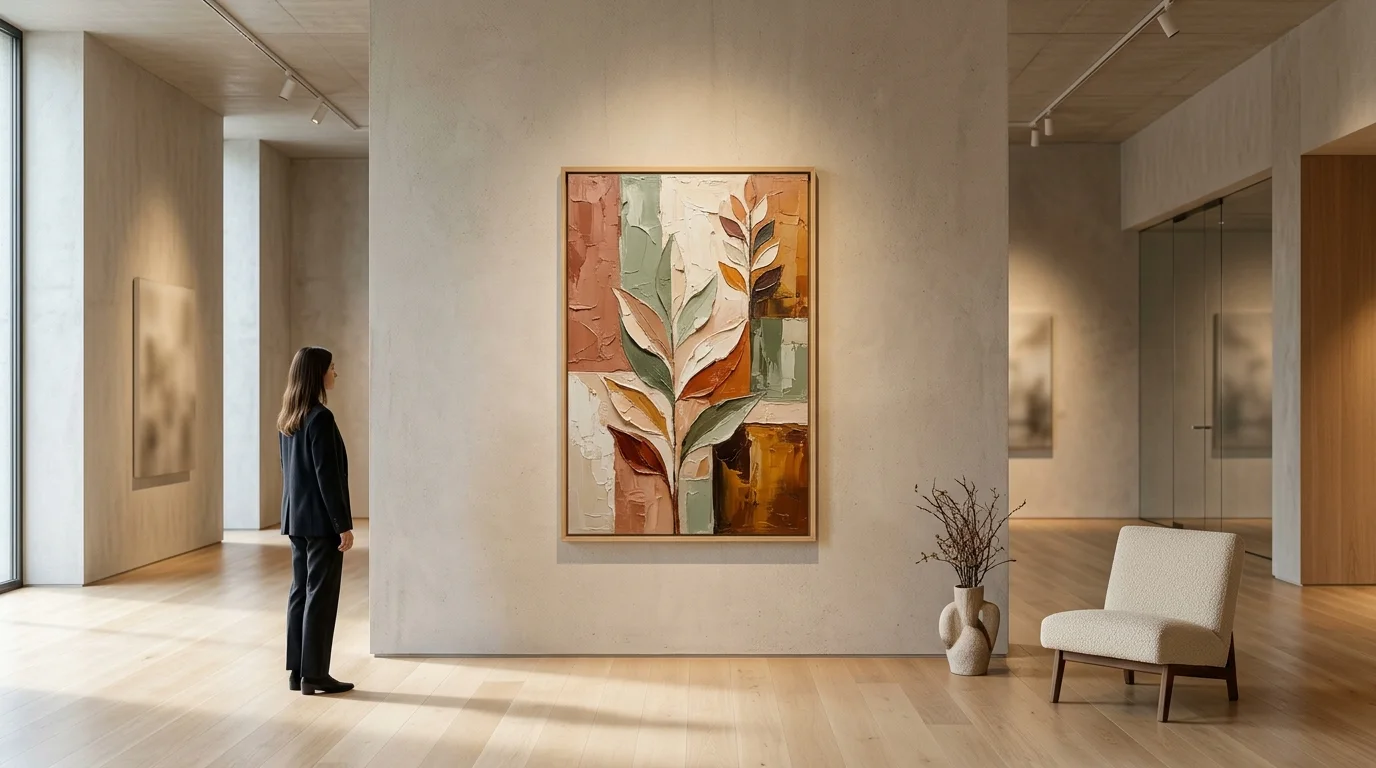
Notice that the international metric standard defined under the ISO 216 paper standard uses a unique geometric ratio of 1:\sqrt{2} (approximately 1:1.4142). In Midjourney, passing --ar 5:7 or --ar 7:10 offers the closest integer approximation to native A4/A3/A2 paper without distortion.
The Bleed Margin Rule: Don't Ruin Your Print at the Trimmer
When professional print shops slice stacks of paper down to size, mechanical cutting blades can drift by 1 to 2 millimeters. If your artwork ends exactly at the border of your canvas, any slight blade misalignment leaves an ugly white sliver of unprinted paper along the edge.
To prevent this, commercial printers demand a 0.125 inch (3mm) bleed margin on all sides.
For an 8 × 10 inch print, your final export canvas should be 8.25 × 10.25 inches (2475 × 3075 pixels at 300 DPI).
Never place text, artist signatures, or vital visual elements within that outer 0.125-inch perimeter.
Let background textures, sky, or paint splatters extend all the way across the bleed boundary.
The Upscaling Workflow for Physical Print
Because no AI generator natively outputs 7200 × 10800 pixel images (which would overwhelm GPU VRAM and cause severe tiling hallucinations), you must adopt a multi-stage production pipeline:
Stage 1 (Initial Generation): Generate your base artwork at the exact aspect ratio target (e.g.,
--ar 2:3in Midjourney or832 × 1248in Flux.1).Stage 2 (In-Engine Upscale): Use the model's subtle upscale tool (such as Midjourney's Upscale (Subtle) or ComfyUI's latent upscaler) to reach approximately 2048 × 3072 pixels.
Stage 3 (AI Neural Enhancement): Pass the 2K render through a dedicated AI upscaling model such as Topaz Gigapixel AI, Upscayl (Free & Open Source), or Real-ESRGAN. Use a 4x upscale factor with moderate texture retention and mild denoising to reach your final 300 DPI print target (e.g., 7200 × 10800 px).
Stage 4 (Color Space Conversion): Convert your image from RGB (digital screen color space) to CMYK (four-color ink printing space) using Adobe Photoshop or Affinity Photo to review how saturated neon greens, cyans, and magentas will render in real ink before sending the file to the printing house.
For more technical tips on crafting lifelike camera textures and studio lighting that hold up under close print inspection, read our detailed guide on How to Create Realistic AI Photos.
AI Model Support Matrix: How Each Engine Controls Aspect Ratios
Not all AI tools accept the same commands or offer the same flexibility. Here is an overview of how the primary generative engines handle aspect ratios as of 2026:
AI Engine | Ratio Flexibility | Command / Parameter Syntax | Default Native Resolution | Best Practice Tip |
|---|---|---|---|---|
Midjourney (v5 & v6) | Any integer or decimal ratio from |
| ~1024 × 1024 px base | Do not include spaces inside the ratio ( |
Flux.1 (Dev & Schnell) | Discrete aspect buckets | Selected via UI dropdown or resolution parameters | 1024 × 1024 px (1 Megapixel total) | Keep total pixel product near ~1,048,576 px to maintain anatomical stability |
Stable Diffusion (SDXL / SD 1.5) | Discrete width & height sliders | Direct pixel values (e.g., | 1024 × 1024 px (SDXL) / 512 × 512 px (SD 1.5) | Always set width and height in multiples of 64 or 8 to prevent VAE decoding corruption |
DALL-E 3 (ChatGPT) | Strict preset options only | Natural language prompt: | 1024 × 1024 (Square), 1792 × 1024 (Landscape), 1024 × 1792 (Portrait) | Cannot generate custom ratios natively; generate closest preset and crop manually |
Midjourney Aspect Ratio Rules
Midjourney offers the most versatile aspect ratio engine among commercial platforms. You can supply whole numbers (--ar 16:9), large dimensions (--ar 1920:1080), or precise decimals (--ar 2.39:1).
Keep these rules in mind:
No spaces inside the flag:
--ar 16:9is valid.--ar 16 : 9will trigger a syntax parsing error.Ratios over 3:1: Midjourney officially caps native rendering at approximately 3:1 (ultra-wide) and 1:3 (ultra-tall). If you require wider panoramic ratios (such as a 32:9 dual monitor background), generate a 16:9 image first and utilize the Pan Left/Right (
⬅️/➡️) button or the Vary (Region) feature.Changing aspect ratios on existing jobs: If you generated an image in 1:1 and wish you had used 16:9, do not re-roll from scratch. Use Midjourney's Zoom Out with custom zoom (
--zoom 1.5 --ar 16:9) or Pan to organically expand the canvas outward in your desired direction without altering your original subject.
Flux.1 and SDXL Aspect Ratio Bucketing Pairs
If you are generating via local software (Automatic1111, ComfyUI, Forge) or cloud API wrappers running Flux.1 or SDXL, choose from these mathematically balanced resolution pairs. Each pair maintains the required 1-megapixel training footprint, preventing warped faces and extra limbs:
1:1 Square:
1024 × 1024 px4:5 Portrait:
896 × 1120 px5:4 Landscape:
1120 × 896 px3:4 Portrait:
896 × 1192 px4:3 Landscape:
1192 × 896 px2:3 Portrait:
832 × 1248 px3:2 Landscape:
1248 × 832 px9:16 Vertical:
768 × 1344 px16:9 Widescreen:
1344 × 768 px21:9 Ultrawide:
1536 × 640 px
If you are just getting started with constructing structured prompts and want to avoid standard beginner syntax errors, consult our foundational tutorial on How to Write AI Image Prompts That Work.
4 Common Aspect Ratio Mistakes (And How to Prevent Them)
Even experienced digital creators stumble into avoidable composition errors. Here are the four most frequent traps and their solutions:
1. Generating Square and Cropping Later
The most widespread mistake among beginners is generating every image at default 1:1 square dimensions and planning to crop it to 9:16 or 16:9 later in Canva or Photoshop.
Why this fails: When you crop a 1:1 square into a 9:16 vertical rectangle, you are forced to discard roughly 44% of your original horizontal canvas. If your subject's hands or props were positioned along the sides, they vanish. Conversely, cropping a square into a 16:9 landscape slices off the top and bottom, often scalping your character's forehead or chopping off their feet. Always set your aspect ratio parameter in your prompt before generating.
2. Forgetting the Mobile "Safe Corridor"
Uploading an unformatted 9:16 image directly to Instagram Stories or TikTok without accounting for platform overlays results in floating comment text, like buttons, and music tags masking your subject's face.
The Fix: Mentally divide your 9:16 canvas into five vertical sections. Keep your main character, typography, and logo within sections 2, 3, and 4 (the middle 60%). Allow the top 15% and bottom 25% to serve as atmospheric negative space (sky, floor, water, or soft vignette).
3. Confusing Pixel Resolution with File Quality
Setting an image to 4000 × 4000 pixels does not automatically make it look good. If the base latent generation lacked clear prompt descriptors for micro-textures, lens refraction, and depth of field, an upscaled image merely displays larger, smoother blurry pixels. High-quality prints depend on compositional clarity first, crisp latent details second, and clean neural upscaling third.
4. Ignoring the VAE Step Multiple in Local Models
In Stable Diffusion ComfyUI workflows, entering arbitrary resolutions like 831 × 1215 causes decoding crashes or edge artifact noise. Neural variational autoencoders (VAEs) compress images in blocks of 8 pixels (and often prefer multiples of 64). Always round your pixel dimensions to the nearest multiple of 64 (e.g., 832 × 1216).
Conclusion: Build Your Visual Library with Intentional Dimensions
Selecting the right aspect ratio is not a technical afterthought—it is the foundational architectural decision that determines how your AI engine arranges lighting, depth of field, and focal points.
By matching your initial generation parameter directly to your intended medium:
Your social media posts will claim maximum screen real estate and stop scrollers in their tracks.
Your wallpapers will frame system widgets and lock screen clocks with clean, intentional elegance.
Your physical art prints will align seamlessly with gallery frames at full 300 DPI clarity without unexpected cropping or pixelation.
Before you launch your next generation, take five seconds to identify where the final artwork will live. Select the matching ratio from our AI Art Aspect Ratio Cheat Sheet, insert the corresponding parameter, and let the diffusion model frame your vision with precision.
Ready to test these aspect ratios with proven, production-grade prompts? Explore the complete Promzio prompt directory, where thousands of hand-tested prompts across Midjourney, Flux.1, and Stable Diffusion are pre-configured for photorealism, character design, and commercial art.
Frequently Asked Questions
What is the primary purpose of an AI Art Aspect Ratio Cheat Sheet?
What is the best aspect ratio for Instagram posts according to the AI Art Aspect Ratio Cheat Sheet?
How do I calculate pixel dimensions for physical print using an AI Art Aspect Ratio Cheat Sheet?
Why does the AI Art Aspect Ratio Cheat Sheet emphasize standard resolution buckets over arbitrary sizes?
How do I specify aspect ratios in Midjourney vs DALL-E 3 on the AI Art Aspect Ratio Cheat Sheet?
Can I convert a square 1:1 render into a widescreen ratio using an AI Art Aspect Ratio Cheat Sheet?
Pooja Nair
Brand Identity & Commercial 3D Prompt Specialist
Product designer and brand strategist based in Kochi. Focuses on 3D isometric mockups, minimal clay renders, and corporate marketing prompt systems.